
How to Perform a Factory Reset on a Samsung Tablet
Samsung tablets have a built-in feature for hard resetting. You only need your tablet and a little time to reset it using Recovery Mode.
Steps to Perform a Hard Reset on Your Samsung Tablet
Still, the exact steps might vary slightly depending on where you live and your specific tablet model.
- First, turn off your tablet. Ensure it is completely off, not just sleeping. After the screen goes dark, wait a few seconds. It's a good idea to have your device fully charged or connected to power during this process. This prevents the tablet from turning off suddenly and causing issues.
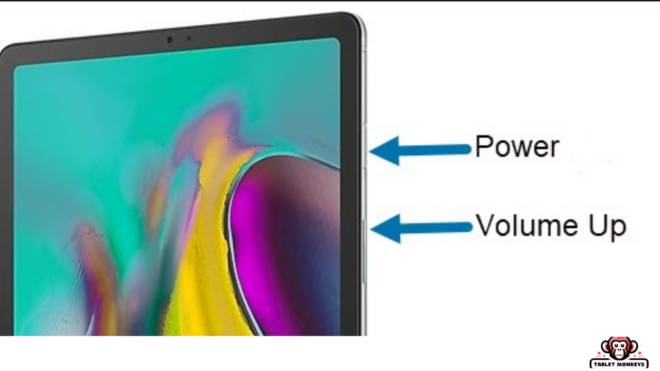
- To hard reset your Samsung tablet, press and hold the Power and Volume Up buttons together, or the Power, Volume Up, and Home buttons until it turns on and goes into Recovery Mode.
- It usually takes about 10 to 15 seconds. Once the screen is on, release the buttons, even if you held them for less time. If the tablet does not start as usual and goes to your apps, it is in Recovery Mode.
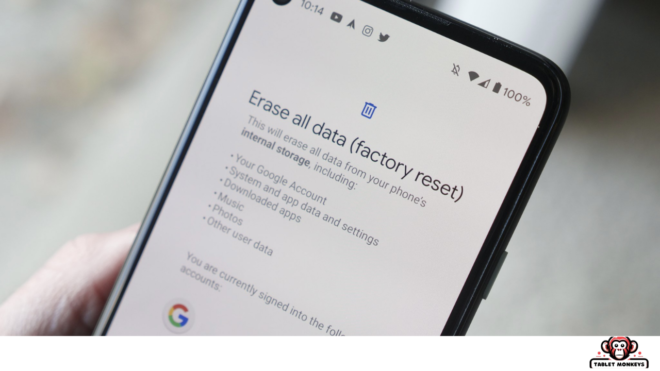
- Use the volume buttons to navigate the menu until you reach the wipe option, usually labeled as Data Wipe/Factory Reset. Press the power button to select this option and confirm any prompts on the screen. Remember: This will delete all your personal data.
- Back up any important information before you reset. Once the reset is complete, the tablet will restart by itself. If it doesn’t, turn it on as you normally would. It will start up as a clean device with no personal data.
Setting Up a New Android Tablet: Does a Samsung Tablet Have a Reset Button?
A Samsung tablet doesn't have a specific reset button. However, you can push a combination of buttons to enter Recovery Mode. From there, you can reset your tablet to its original settings, which erases all your data.
What Happens After a Factory Reset?
After a factory reset, your Samsung tablet will appear as if it's just been taken out of the box. It won't contain any of your personal apps, files, or settings.
The device will prompt you to set up your language, Wi-Fi, and Google Account details just like when you first bought it. This is ideal for starting fresh or preparing the tablet for a new owner.
Preparing Your Samsung Tablet for Reset
Before performing a factory reset, it's important to back up your data to avoid losing important files.
You can use Samsung Cloud, Google Drive, or an external storage device to save your documents, photos, videos, and apps. Make sure to remove any inserted SD cards or SIM cards to prevent accidental formatting during the reset process.
Common Issues Solved by Factory Reset
A factory reset can resolve many common problems such as crashes, freezes, excessive battery drain, or unresponsive apps.
It's often used as a troubleshooting step when simpler methods, like restarting the device or clearing the app cache, don't work. Remember, a reset should be your last resort because it erases all data.
How to Secure Your Data Before a Reset
- Security should be a top priority when resetting your device.
- Ensure that all personal information is not only backed up but also securely erased from the tablet.
- You can encrypt your device before resetting to make any remaining data unreadable.
- After the reset, confirm that no personal data remains visible before selling or recycling your device.
Why Reset a Samsung Tablet?
You might need to reset your tablet for two main reasons: if it's running slowly and you want to improve its performance, or if you're planning to sell it and need to delete your personal information.
It's best to use a hard reset only as a final option because it will delete all your data. Hard resetting can help solve issues you can't fix otherwise. Always try to simply restart your tablet first.
Restoring Your Samsung Tablet Post-Reset
After performing a factory reset, your tablet will need to be set up again. This section would guide users through the process of restoring their backed-up data and reinstalling their favourite apps, ensuring that their tablet is fully functional and personalised once more.
Troubleshooting Post-Reset Issues
Sometimes, a reset might not go as planned, or new issues might arise. This section would address common complications such as stuck screens, failure to boot, or problems with restoring data.
It would provide step-by-step solutions to help users resolve these issues quickly.
Maximising Tablet Performance After a Reset
To keep your Samsung tablet running smoothly after a reset, this section would offer tips on optimising settings, managing apps, and maintaining battery health.
It would also suggest regular maintenance practices and software updates to enhance the tablet's performance and extend its lifespan.

Jim's passion for Apple products ignited in 2007 when Steve Jobs introduced the first iPhone. This was a canon event in his life. Noticing a lack of iPad-focused content that is easy to understand even for “tech-noob”, he decided to create Tabletmonkeys in 2011.
Jim continues to share his expertise and passion for tablets, helping his audience as much as he can with his motto “One Swipe at a Time!”