
How to Make an Android Tablet Safe and Ad-Free for Kids
An Android tablet is often a child's first personal device. It's affordable, has a big screen for games and cartoons, and can double as a homework tool.
But out of the box, a tablet is built for adults. Kids can reach the whole Play Store, the open web and plenty of apps that are far more interested in showing ads than in being child-friendly.
The good news is that you don't need to be a tech expert to fix this. With a few built-in Android features and one or two extra tools, you can turn a standard tablet into a much safer space. Here's how to set it up step by step.
Start With a Separate Space for Your Child
The first rule is simple: don't hand your child a tablet logged into your own account. Your account has access to your email, photos, saved passwords and payment methods, and a curious child can reach all of them in a few taps.
Instead, give your child a space of their own:
- A child's Google Account. Most Android tablets let you add a supervised account for a child under 13 (the age varies by country). It becomes the base for all the parental controls described below.
- Samsung Kids. If you have a Samsung Galaxy Tab, Samsung Kids turns the tablet into a colorful, locked-down environment where your child can only open the apps you've approved. Leaving it requires your PIN.
- Google Kids Space. Some Android tablets from other brands offer Kids Space, a similar mode with curated apps, books and videos.
If several children share one tablet, create a separate profile for each one so you can match settings to their age.
Set Up Google Family Link
Google Family Link is a free app that lets you manage your child's account from your own phone. Once it's connected, you can:
- Approve apps. Every time your child tries to install something from the Play Store, you get a request and decide whether to allow it.
- Set screen time limits. Choose a daily limit and a bedtime, after which the tablet locks automatically.
- Limit specific apps. Give a game 30 minutes a day while leaving reading or learning apps unlimited.
- See activity reports. Check which apps your child uses most and for how long.
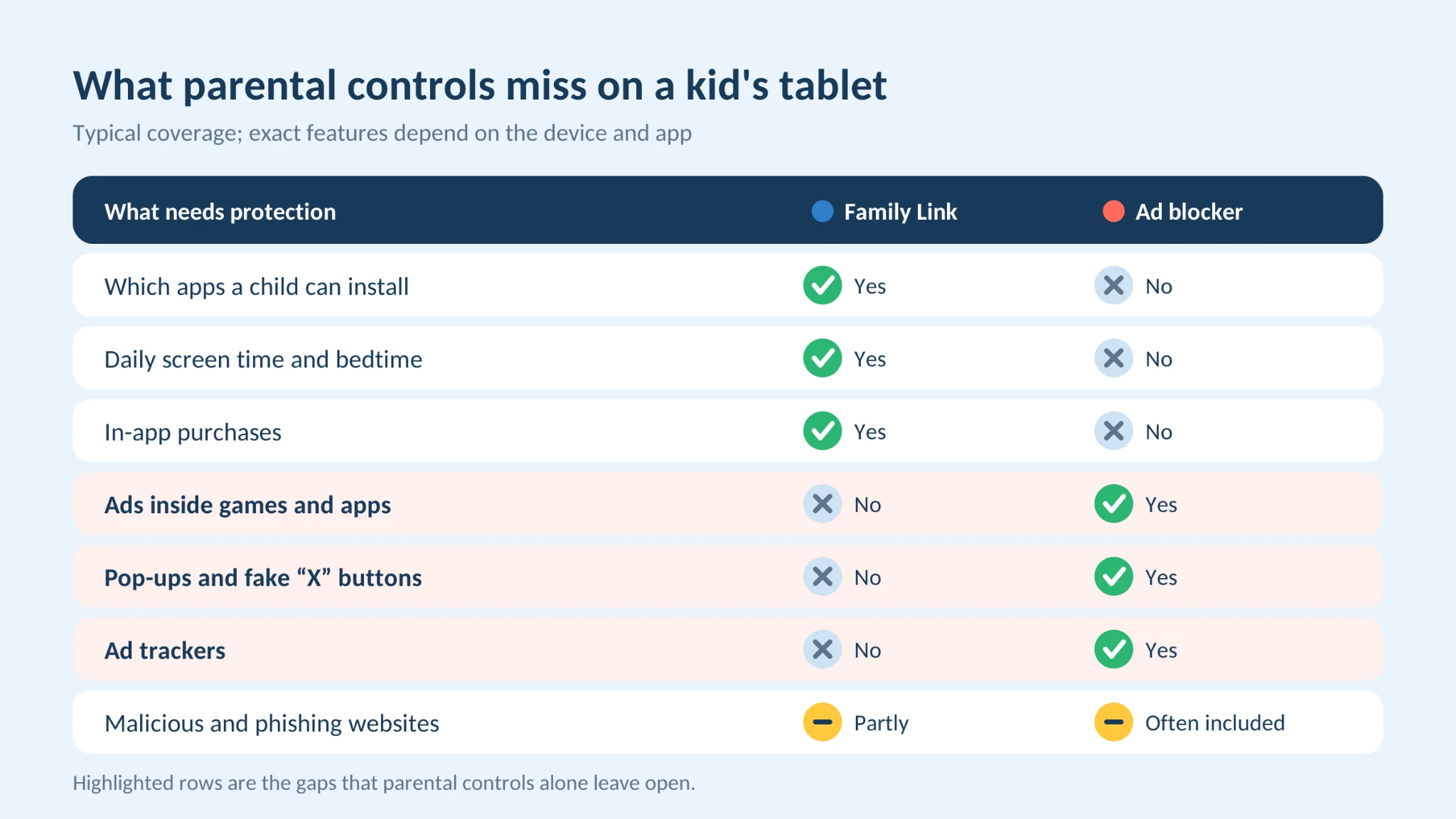
Family Link is the backbone of a safe tablet, but it has one important gap. It controls which apps your child can open, not what happens inside them. A free game you've approved can still show a stream of video ads, pop-ups and links to other apps.
Block Ads and Unsafe Websites
Ads are one of the biggest problems on a child's tablet, and they're easy to underestimate. Many free kids' games make money from advertising, which means:
- Constant interruptions. A video ad after every level teaches kids to tap “skip” and “install” without thinking.
- Ads that aren't meant for children. Ad networks don't always filter perfectly, so kids can see ads for mature games, dating apps or gambling-style content.
- Accidental clicks. Small close buttons and fake “X” icons send children to app store pages, websites or sign-up forms.
- Tracking. Ads often come with trackers that collect data about how the device is used.
Because parental controls don't touch in-app advertising, it's worth adding a dedicated tool. A system-wide ad blocker for Android, such as AdLock, filters ads not only in the browser but also inside apps and games. It can also block known malicious and phishing websites, which adds another layer of protection if your child wanders off a safe page.
For web browsing, also turn on SafeSearch in Google and keep Chrome managed through Family Link, where you can block mature sites or allow only the sites you choose.
Make Google Play and YouTube Kid-Friendly
Set Content Ratings in Google Play
In the Play Store, open Settings → Family → Parental controls and create a PIN. Then set age limits for apps and games, movies and books. Even if your child has Family Link, this gives you a second filter based on age ratings.
Switch to YouTube Kids
Regular YouTube is built for adults, and its recommendations can quickly lead a child to unsuitable videos. YouTube Kids offers age-based modes (Preschool, Younger and Older) and lets you approve specific channels only. If your child is older and uses regular YouTube, set up a supervised experience through Family Link instead.
Lock In-App Purchases
Many “free” games are designed to sell coins, gems and extra lives. In Google Play, go to Settings → Authentication and require a password for every purchase.
With Family Link, you can also make all purchases need your approval. This one setting can save you from an unpleasant surprise on your card statement.
Don't Forget the Basics
A few simple habits make all of these settings work better:
- Keep the tablet updated. Install Android system updates and app updates, since they often fix security issues.
- Use a screen lock. A PIN or pattern stops younger siblings or friends from changing settings.
- Keep the tablet in shared spaces. For young children, using the tablet in the living room rather than the bedroom makes it easier to notice problems early.
- Talk to your child. Explain why some apps aren't allowed and ask them to tell you if they see something strange or upsetting. No setting replaces trust.
An Android tablet can be a great tool for learning and play, but it needs a little preparation before it goes into a child's hands.
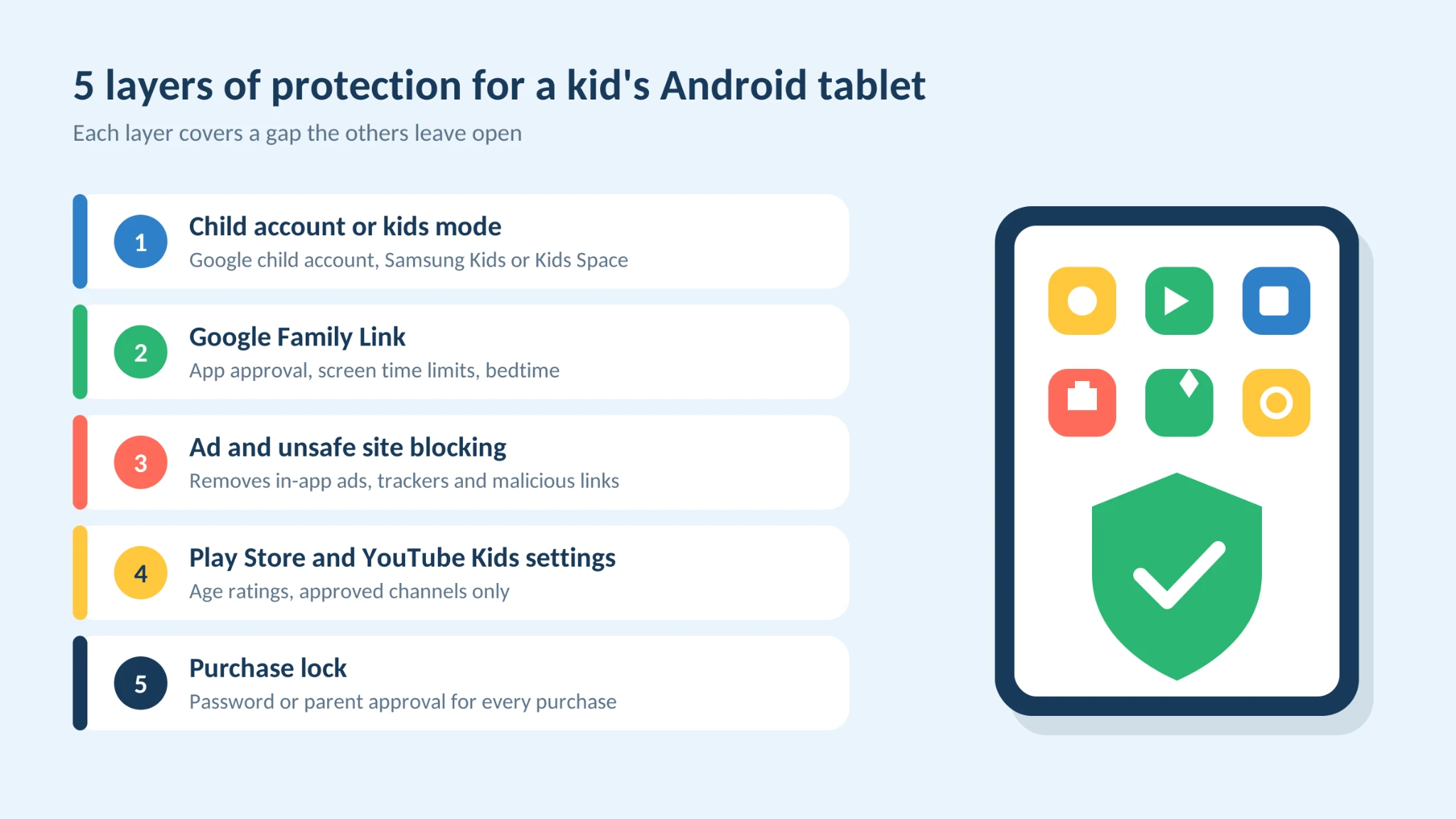
Start with a separate child account or kids mode, add Google Family Link for app approval and screen time, and block the ads and unsafe sites that parental controls can't catch. Finish with safer Play Store and YouTube settings and a password on every purchase.
It takes less than an hour to set up, and the result is a tablet your child can enjoy, without a stream of ads, surprise purchases or content that wasn't made for them.

Jim's passion for Apple products ignited in 2007 when Steve Jobs introduced the first iPhone. This was a canon event in his life. Noticing a lack of iPad-focused content that is easy to understand even for “tech-noob”, he decided to create Tabletmonkeys in 2011.
Jim continues to share his expertise and passion for tablets, helping his audience as much as he can with his motto “One Swipe at a Time!”