How to Set Up a Tablet as an AI Video Workstation?
A few years ago, the idea of making video on a tablet meant trimming clips in a basic editor and hoping the export did not overheat the device. AI video generation flips that around.
The heavy computing happens on remote servers, so the device in your hands only needs to write prompts, preview results and edit the final cut. That makes a tablet a surprisingly capable AI video workstation, and in some ways a better one than a laptop.
Here is how to set one up properly, from picking the right aspect ratio for your screen to the accessories that actually make a difference.
Why tablets suit AI video work?
Generating a clip with a modern video model takes server-grade GPUs. Your tablet's chip never touches that part of the job, which means battery life and thermals stop being the bottleneck. What matters instead is everything around the generation:
- A good screen for judging color, motion and small artifacts.
- Touch and stylus input for sketching start frames and scrubbing timelines.
- A capable editor to cut clips together with music and titles.
- Enough storage to keep a project's clips on the device.
Mid-range and flagship tablets from the last few generations handle all four comfortably. You do not need a pro model to get started, though a larger, brighter display helps when you are reviewing footage.
Match the clip shape to your screen
This is the detail most tablet users miss. Video generators let you choose an aspect ratio, and the default is usually 16:9 or 9:16 for phones. But tablet screens are a different shape.
Most iPads sit at or close to 4:3. Microsoft's Surface Pro line uses 3:2. Many Android tablets, including Samsung's Galaxy Tab S series, use 16:10.
If you are making content to be watched on tablets, such as a digital magazine, an interactive kids' book, a slideshow loop for a retail display or a presentation, generating in the screen's native shape avoids black bars and awkward crops. Some models now support these shapes directly.
The Grok Imagine video generator from xAI, for example, offers seven ratios: 16:9, 9:16, 1:1, 4:3, 3:4, 3:2 and 2:3. Pick 4:3 for a full-screen iPad loop, 3:4 when the iPad is upright in a stand, and 3:2 for a Surface. For 16:10 Android screens, 16:9 is the closest fit with only thin bars.
Use the stylus to make your start frame
Text-to-video is the obvious way in, but image-to-video gives you far more control, and this is where a tablet with a stylus really earns its keep.
Sketch or paint your opening frame in Procreate, Infinite Painter, Clip Studio Paint or Krita, export it, and use it as the start image for a clip. The model animates your composition instead of inventing one.
A simple workflow:
- Draw a rough scene with clear shapes and lighting direction. It does not need to be polished.
- Export as a PNG or JPEG to your photo library or files app.
- Upload it as the start image in your video tool.
- Write a prompt describing one action and the sound, for example: “Slow push-in. Wind sweeps through the meadow, the paper lanterns sway and drift upward, warm dusk light, crickets and a gentle breeze.”
- Generate a five second clip and review it full screen.
Grok Imagine also has a Reference to Video mode that accepts up to seven reference images, which is useful if you have drawn a character from several angles and want it to stay consistent across clips.
Pick an editor that fits your tablet
Generated clips are short, typically a few seconds up to around fifteen, so you will almost always cut several together. Good options by platform:
- iPad: LumaFusion and Final Cut Pro for iPad for multitrack work, iMovie for quick cuts, CapCut for social formats.
- Android tablets: CapCut, PowerDirector and KineMaster all support multitrack timelines on larger screens.
- Windows tablets: Clipchamp comes built into Windows 11, and its timeline works well with touch.
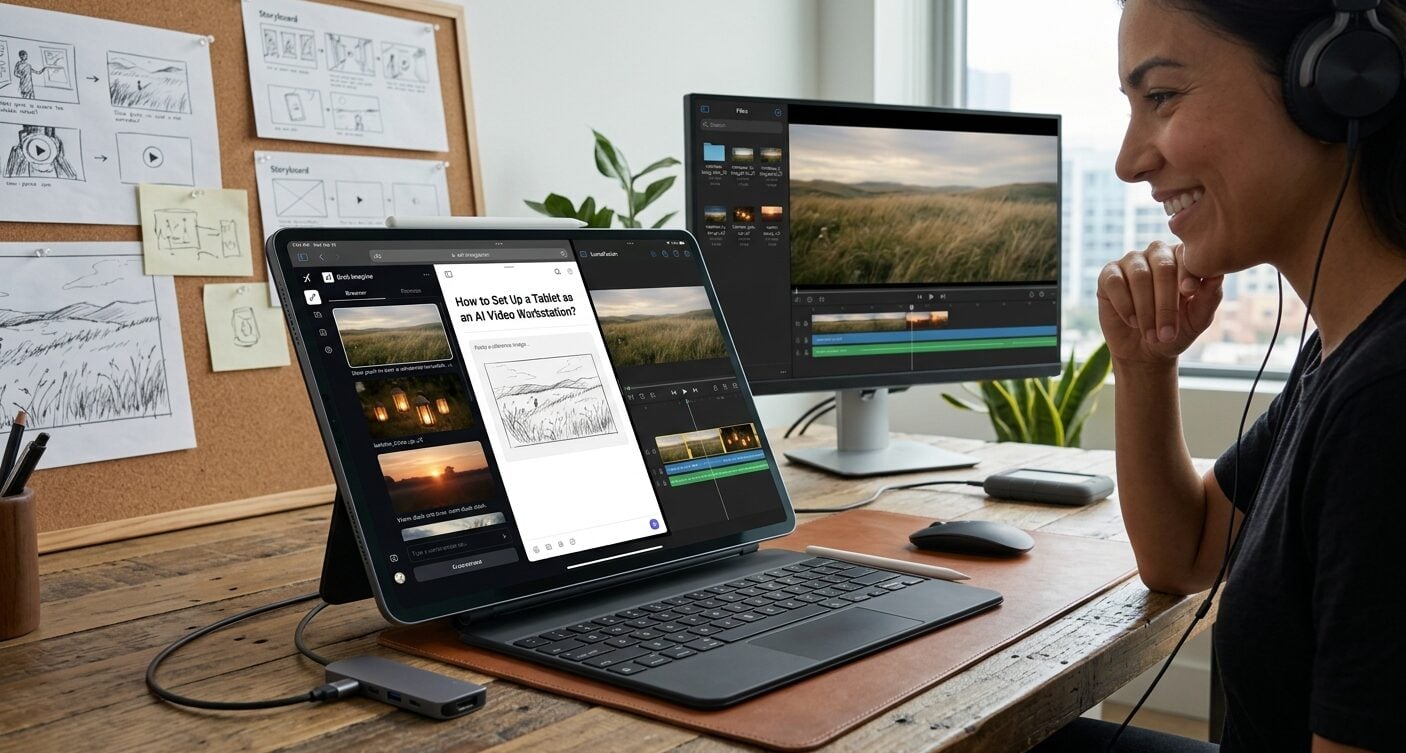
Split-screen helps a lot here. Keep the browser with your video generator on one side and your editor on the other, and drag finished clips across as they come in.
Storage, files and sound
AI clips are modest in size. A 720p clip runs at 1280 by 720, so even a project with dozens of takes rarely strains a base storage model.
The bigger issue is organization. Create a folder per project in your files app and rename clips as you download them, because generated filenames are usually random strings.
Sound deserves attention too. Some models, Grok Imagine included, generate audio along with the picture, from wind and waves to footsteps and dialogue.
Tablet speakers have improved, but you will hear problems like clipping or mismatched ambience far more clearly on a pair of headphones. Wired or low-latency wireless headphones are the single most useful accessory for this kind of work.
Accessories that are worth it
- A keyboard case. Prompts are written text. Typing long shot descriptions on glass gets old quickly.
- A stand. Reviewing clips at eye level is easier on the neck, and it lets you work in portrait for vertical video.
- An external display. Recent iPads and many Android tablets support extended desktop modes. A second screen is great for watching a cut while you keep editing.
- A USB-C drive. Handy for archiving finished projects and moving files to a desktop for color grading.
Know the limits
A tablet will not replace a desktop for long-form editing, heavy color work or projects with hundreds of layers. Browser-based generators also need a steady connection, so plan generation sessions for home or office Wi-Fi rather than a train. And like any AI output, clips need a careful review before they go anywhere public.
For short videos, social content, motion artwork and quick concept reels, though, the tablet is now a complete studio. The servers do the rendering, and you get to do the creative part on the device you already carry everywhere.

Jim's passion for Apple products ignited in 2007 when Steve Jobs introduced the first iPhone. This was a canon event in his life. Noticing a lack of iPad-focused content that is easy to understand even for “tech-noob”, he decided to create Tabletmonkeys in 2011.
Jim continues to share his expertise and passion for tablets, helping his audience as much as he can with his motto “One Swipe at a Time!”