
How to Fix iPhone Problems After an iOS Update?
Your iPhone updated overnight after you searched iOS 26.5.1: should I update, and now the battery's gone by lunchtime. Apps that worked fine last week quit the moment you open them; Wi-Fi drops for no reason. Most of this settles on its own, and the rest clears with a handful of basic fixes.
This guide explains the most common issues you may encounter and how to fix them with basic methods or Dr.Fone – System Repair (iOS).
Part 1. Common Problems After an iOS Update
The most common issues after updates are covered below; know them in detail before iOS system repair.
| What You Notice | What's Usually Behind It | How Long to Give It |
| Battery Drains Fast | Background re-indexing and app refreshes after the install. | 24 to 48 hours |
| Everything Feels Slow | Spotlight rebuilds its index while you're using the phone. | 24 to 48 hours |
| Apps Crash On Launch | The app hasn't been rebuilt for the new iOS version yet. | Until the developer provides an update. |
| Wi-Fi Or Bluetooth Drops | Network settings that didn't carry over cleanly. | Won't clear on its own. |
Note: The last row is the one to act on straight away. Dropped connections never settle by themselves, and neither do apps that keep quitting after you've already updated them.
Part 2. Basic Troubleshooting That Usually Solves Post-Update Issues
Work down this list and stop when things feel normal again. Every one of these is quick, and none of them touch your photos or messages. It's best to try them before you consider repairing the iOS operating system.
Fix 1. Restart iPhone
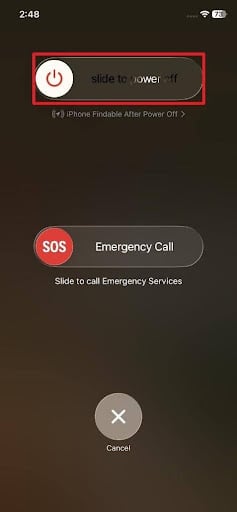
A restart clears memory and shuts down whatever's been stuck running since the install finished. It costs you the least, and the mentioned steps show how it's done:
Instructions. Hold the “Power + Volume Up” button and slide the “Slide to Power Off” slider. Wait 30 minutes, then press the “Power” button to turn it back on.
Fix 2. Update Apps
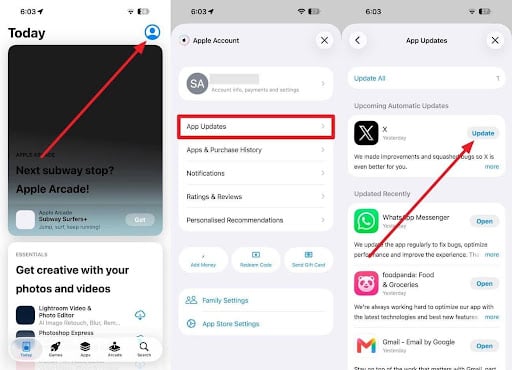
Crashes right after an iOS release usually mean the app hasn't caught up yet. The developer's fix is often already sitting there waiting. Here is how it can be done:
Instructions. Tap the “Profile” picture in the App Store, choose “App Updates,” and select the “Update” button next to available applications.
Fix 3. Free Up Storage
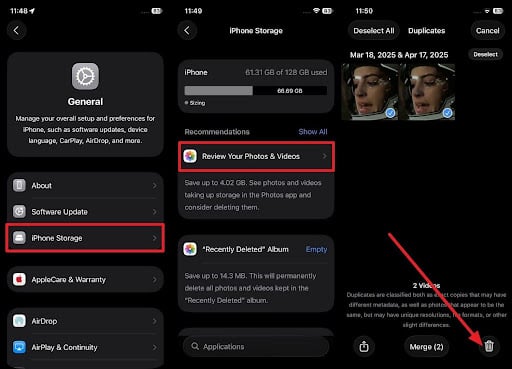
If the issue persists once you have learned iOS 26.5.1: should I update, try to free up space. Each iOS version requires more space than the one before it, and below are the steps to access the iPhone Storage option:
Instructions. Head into “Settings > General > iPhone Storage” > Review Your Photos & Videos > Choose the unnecessary or large photos or videos > Press “Delete.”
Fix 4. Reset Network Settings
Have your Wi-Fi passwords handy first, because this will clear all saved networks. It rebuilds network configuration from scratch, which is usually what dropped connections actually need. As for the guide, you can follow the steps below to fix the issue after the update:
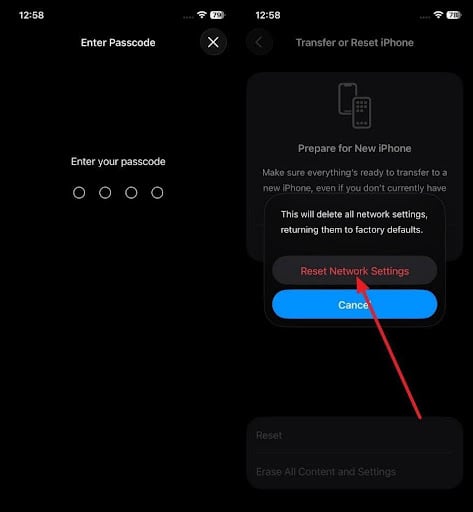
Step 1. Open “Settings > General > Transfer or Reset iPhone > Reset > Reset Network Settings.”
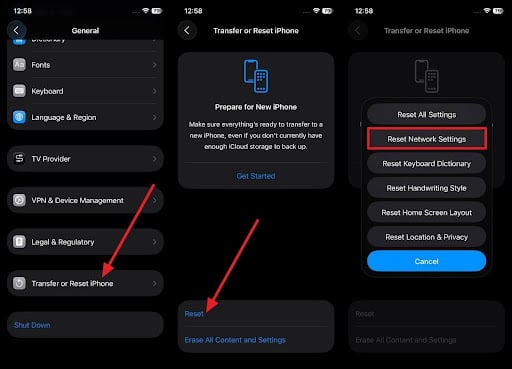
Step 2. Enter the iDevice passcode twice, then choose the “Reset Network Settings” option to continue.
Part 3. Was the Update Installed Correctly?
Sometimes the trouble isn't the new version at all, even if you know iOS 26.5.1: should I update. The install never finished, and iOS is now running on a mix of old and new system files. That produces symptoms no amount of app updating will clear.
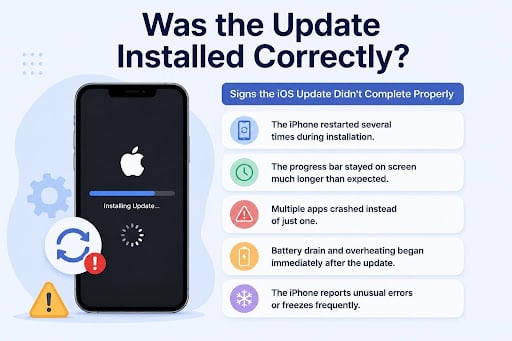
Signs the iOS Update Didn't Complete Properly
If the given signs happened right after the update, the installation may have failed or become corrupted:
- The iPhone restarted several times during installation.
- The progress bar stayed on screen much longer than expected.
- Multiple apps crashed instead of just one.
- Battery drain and overheating began immediately after the update.
- The iPhone reports unusual errors or freezes frequently.
Check the Installed iOS Version
The quickest check is Settings > General > About, where you can compare the Software Version with the version you intended to install. If it doesn't match the release, run it again from the start; that's your next move.
What If the Update Still Fails?
If the installation repeatedly fails or the same problems return, the issue may involve damaged iOS system files. To that end, you can go through the iOS software update failure guide for assistance.
Part 4. When Basic Fixes Are Not Enough
Give the simple fixes a couple of days to prove themselves before you go for iOS system repair. If the problems persist, damaged system files are responsible rather than routine background setup. Restarting provides only temporary relief before the issue returns. It also causes random reboots, freezes specific settings menus, or reverts updates.
None of that is fixable from inside iOS, because the tools you'd normally use are part of what's broken. The standard route from here is a restore through your computer, which reinstalls the system and erases everything on the phone along the way.
Part 5. Restore iOS Stability with Dr.Fone
If you've been asking 26.5.2 or iOS 26.5.1: should I update, the truth is this may still carry risks. 26.5.1 reached 5 models, 26.5.2 went out to every iPhone 11 and later, and 26.6 is due any day now. What matters more than the version number is having a way back when an install goes sideways.
Dr.Fone – System Repair (iOS) fills exactly that gap and is designed to resolve 150+ system issues. It repairs whatever the failed install left in an inconsistent state, using firmware matched to your model. Standard Repair Mode does that without touching your photos, messages, or settings. For a phone that runs but badly, that beats a full erase by a wide margin.
Key Features
- Official Firmware Download: Pulls firmware matched to your exact model rather than a generic system image.
- Post-Update Fault Coverage: Targets what goes wrong after an install, from crashes and freezes to boot loops.
- No Jailbreak Needed: Runs without jailbreaking, terminal commands, or button presses you have to time exactly.
- Numbered Error Handling: Clears the coded iTunes and Finder errors that block a repair through your computer.
- Factory Reset Without a Passcode: Wipes and rebuilds the phone when you can't get past the lock screen.
Guide to Repair the iOS Operating System with Dr.Fone
Regardless of the version you update to, resolve the issues after the update via the given iOS system repair guide:
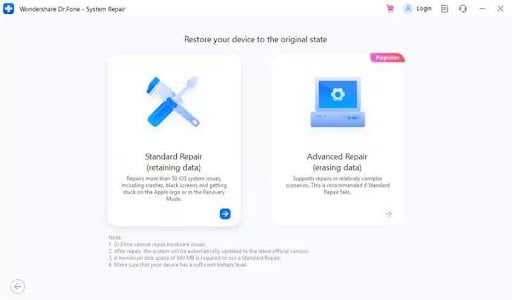
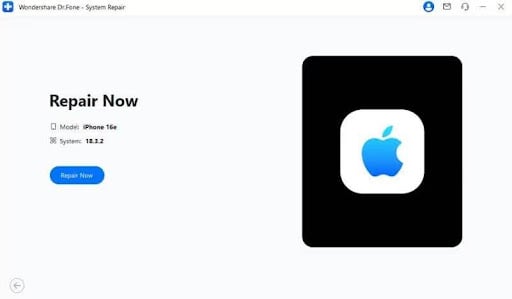
Step 1. Repair Now in the Standard Mode
In the Dr.Fone Toolbox, choose the “System Repair” tool for “iPhone” and press “Repair Now” to select “Standard Mode.”
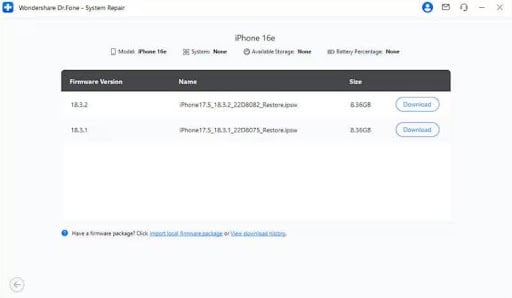
Step 2. Download the Firmware on Dr.Fone
While the phone is connected, choose the “Enter Recovery Mode” option and select the iOS firmware to “Download.”
Step 3. Fix System Issues Now After the Update
Tap the “Repair Now” button after the firmware is installed and wait for Dr.Fone to fix any issues that are happening after the update.
Final Note
Check compatibility and stability before you install the update after knowing iOS 26.5.1: should I update. A release that's been out a couple of weeks has already had its worst bugs found by somebody else. If you're dealing with the aftermath right now, give it 48 hours before deciding anything is genuinely broken.
Sometimes, most post-update trouble is just your iPhone catching up. Whatever's left after that is worth fixing properly, and Dr.Fone – System Repair (iOS) beats erasing a phone over a battery that won't last the day.

Jim's passion for Apple products ignited in 2007 when Steve Jobs introduced the first iPhone. This was a canon event in his life. Noticing a lack of iPad-focused content that is easy to understand even for “tech-noob”, he decided to create Tabletmonkeys in 2011.
Jim continues to share his expertise and passion for tablets, helping his audience as much as he can with his motto “One Swipe at a Time!”