iPhone Universal Remote App: How to Control Your Smart TV Without a Remote
Losing the TV remote always seems to happen at the worst possible time. It disappears somewhere between the couch cushions, the batteries suddenly stop working, or someone in the house simply takes it to another room.
The good news is that if you have an iPhone, you may not need the physical remote at all.
A modern iPhone universal remote app can turn your phone into a convenient controller for a Smart TV. Instead of keeping another device on the coffee table, you can use something you already carry with you every day.
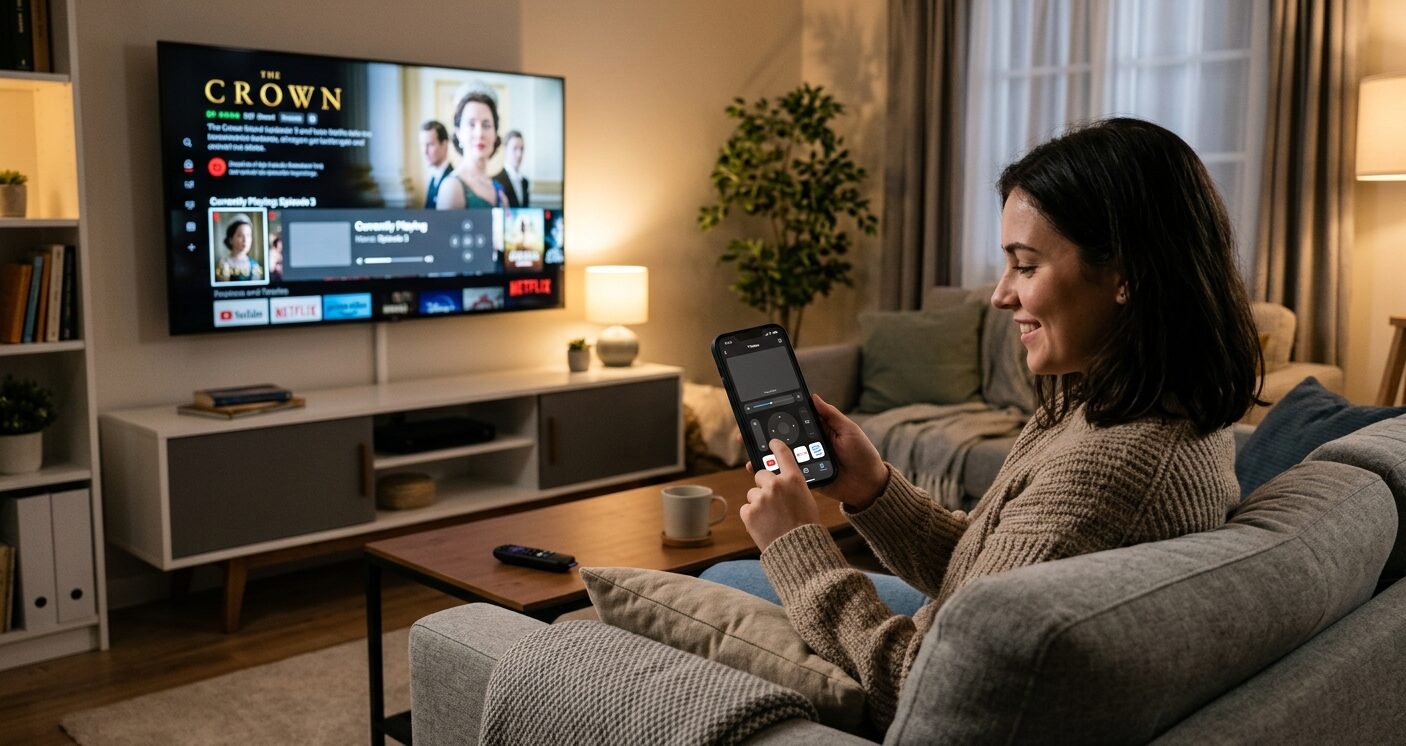
Can an iPhone Really Replace a TV Remote?
Yes, although there is one important difference between a traditional remote and an iPhone app.
iPhones don't have a built-in IR blaster, so they generally don't control TVs by sending infrared signals like many traditional remotes.
Instead, compatible Smart TVs can communicate with your iPhone over Wi-Fi. Your phone and TV usually need to be connected to the same wireless network.
Once the connection is established, your phone can perform many of the functions you'd normally use the physical remote for, including changing channels, adjusting the volume, navigating menus, and controlling playback.
This is where a dedicated universal remote app becomes particularly useful.
TVRem: A Universal Remote for iPhone and iPad
One option worth trying is TVRem, a free universal remote app designed specifically for iPhone and iPad.
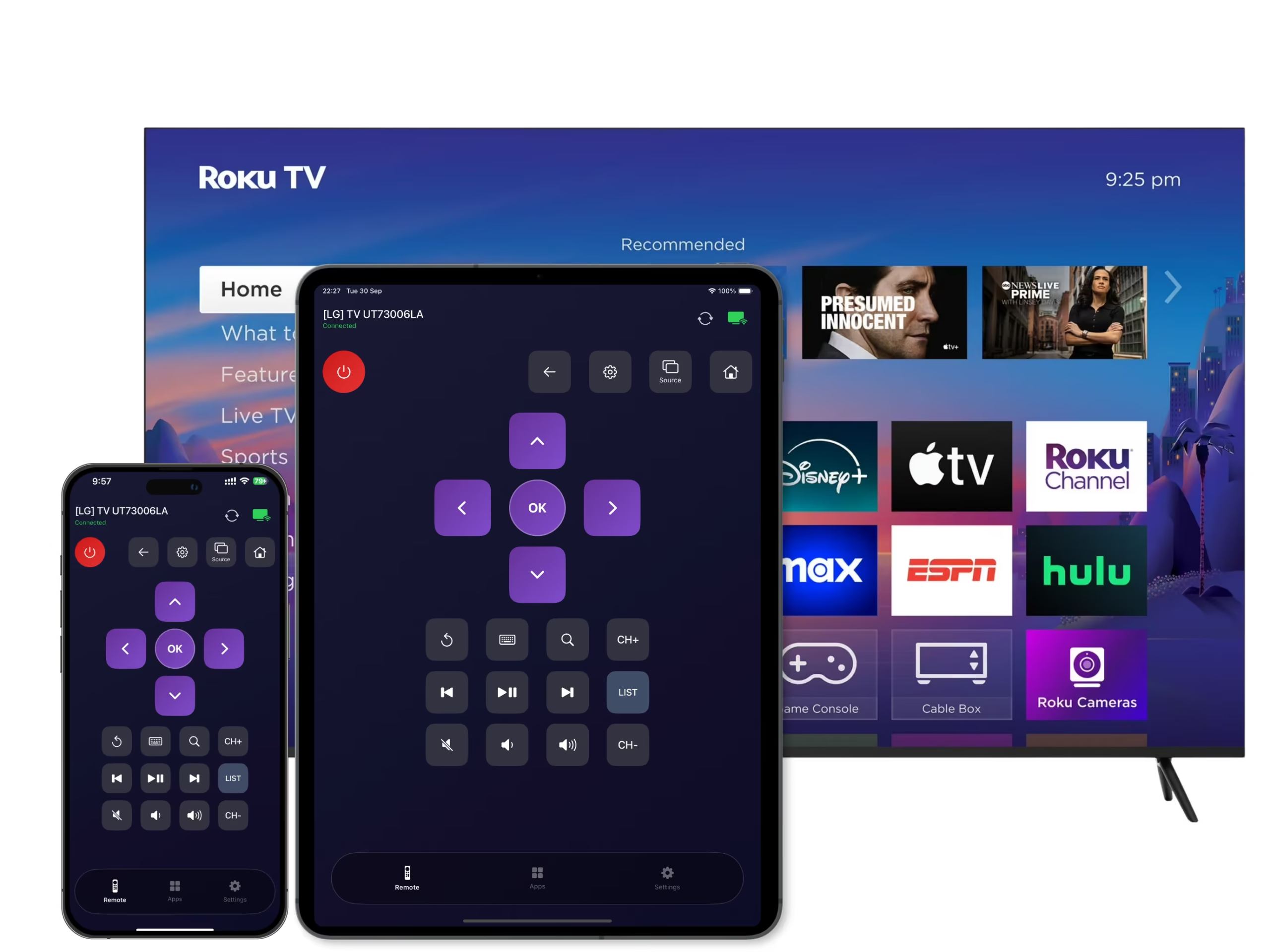
Instead of having separate remote apps for different TVs, TVRem is designed to work with a wide range of Smart TV platforms and brands. It supports Android and Google TV, Fire TV, Roku, Samsung, LG, and other compatible models. It can also work with Apple TV models.
The setup is straightforward: connect your iPhone and TV to the same Wi-Fi network, open TVRem, and let the app find the compatible TV.
There's no need to search through drawers for the original remote every time you want to change something.
More Than Just Buttons on a Screen
A good iPhone remote app shouldn't simply copy the buttons of a physical remote. The advantage of using a phone is that it can make certain tasks faster.
TVRem, for example, includes several features that take advantage of the iPhone's interface.
Use Your iPhone Keyboard for Searching
Typing with a traditional TV remote can be surprisingly frustrating. Moving around an on-screen keyboard one letter at a time isn't exactly the fastest way to search for a movie.
With TVRem, you can use your iPhone's keyboard to enter search terms directly. This can be particularly convenient when searching for movies, shows, YouTube videos, or apps.
Navigate With a Touchpad
TV menus are also easier to navigate when you can swipe and tap instead of repeatedly pressing directional buttons.
TVRem includes touchpad-style controls that let you move around the TV interface using familiar gestures on your iPhone.
Launch Streaming Apps Quickly
Another useful feature is quick access to supported TV apps.
Instead of navigating through several menus to find Netflix, YouTube, Prime Video, or another service, TVRem can provide shortcuts for launching supported apps directly from the phone.
This is one of those small conveniences that becomes more useful the longer you use it.
Voice Control
Some compatible setups can also take advantage of voice control through supported Google Assistant or Alexa functionality. This can make navigation more convenient when you don't want to type or swipe through menus.
Which TVs Can You Control?
Compatibility is one of the most important things to check before installing any universal remote app.
TVRem supports a broad selection of Smart TV platforms, including Android TV, Google TV, Fire TV, Roku, Samsung, LG, and other compatible models. It can also work with TVs that have these platforms built in, as well as supported streaming devices.
That means the same app can potentially replace several different remotes around the house.
Of course, compatibility can depend on the exact TV model and its operating system, so it's always worth checking your specific setup before relying on the app as your only remote.
Why Use an iPhone as a Universal Remote?
There are a few simple advantages.
- It's always nearby. Most people keep their iPhone within reach, while a TV remote can mysteriously disappear.
- You don't need another physical device. Your phone already provides the screen, controls, keyboard, and touch interface.
- Typing is much easier. Searching for content using an iPhone keyboard is faster than navigating a TV keyboard with directional buttons.
- One app can replace multiple remotes. If your home has different Smart TV platforms or streaming devices, a universal remote app can make the setup less cluttered.
How to Get Started With TVRem?
Getting started doesn't require complicated hardware.
- Download TVRem on your iPhone or iPad.
- Make sure your iPhone and Smart TV are connected to the same Wi-Fi network.
- Open TVRem and allow it to discover compatible devices.
- Select your TV.
- Start using your iPhone as the remote.
Download TVRem from the App Store
TVRem is free to download and use, with no subscription required.
Final Thoughts
An iPhone universal remote app won't completely change how you watch TV, but it can solve one of those surprisingly annoying everyday problems: not having the remote when you need it.
For Smart TV owners, an app such as TVRem offers a convenient alternative to the traditional remote, while also adding features that a physical controller can't provide — including an iPhone keyboard, touchpad navigation, quick app launching, and voice control on supported setups.
So the next time your remote disappears, don't start moving the furniture just yet. Your iPhone may already be the remote you've been looking for.

Jim's passion for Apple products ignited in 2007 when Steve Jobs introduced the first iPhone. This was a canon event in his life. Noticing a lack of iPad-focused content that is easy to understand even for “tech-noob”, he decided to create Tabletmonkeys in 2011.
Jim continues to share his expertise and passion for tablets, helping his audience as much as he can with his motto “One Swipe at a Time!”