Can a Tablet Replace a Laptop for AI-Assisted 3D Creation?
For years, serious 3D work has been associated with powerful desktop computers, dedicated graphics cards, complex software, and a mouse-and-keyboard setup.
Tablets were useful for sketching, presenting finished work, or reviewing reference images, but they were rarely treated as complete 3D creation devices.
AI and browser-based creative tools are changing that division.
A tablet does not necessarily need to calculate every polygon, texture, or lighting effect locally. It can be used to capture a reference image, describe a concept, generate an early model through a cloud-based service, inspect the result, collect feedback, and export the asset for further work.
That makes the question more complicated than whether a tablet can run the same software as a laptop.
A better question is:
How much of a modern 3D workflow can now be completed comfortably on a tablet?
For concept generation, rapid prototyping, review, and presentation, the answer is increasingly “quite a lot.” For detailed topology, professional animation, large scenes, and production pipelines, a laptop or desktop still has clear advantages.
Why Tablet-Based 3D No Longer Sounds Impractical
Traditional 3D software was designed around desktop assumptions.
Users were expected to have:
- A relatively powerful processor and graphics card
- A large amount of memory
- Precise mouse input
- A physical keyboard with shortcuts
- Several panels open at once
- Local storage for large projects
- A desktop operating system capable of running specialist tools
Tablets did not fit this model well. Touch controls were less precise for traditional modeling, mobile applications offered fewer professional features, and local hardware struggled with heavy scenes.
Several things have changed.
Modern tablets now offer larger, sharper displays, better multitasking, more memory, improved keyboard accessories, and highly responsive styluses. More importantly, creative software is no longer limited to installed desktop applications.
Cloud processing and browser tools can handle part of the workload remotely. Generative AI can also reduce the amount of manual modeling required at the beginning of a project.
Instead of spending hours building a rough object from basic geometry, a creator may begin with a prompt, image, or sketch and move directly to reviewing a first model.
The tablet has not suddenly become a desktop workstation.
The workflow itself has changed in a way that gives the tablet a more useful role.
What Is Already Practical on a Tablet?
Some 3D tasks now fit a tablet very naturally.
Capturing ideas
A tablet can be used to:
- Photograph a product or physical object
- Draw a rough concept with a stylus
- Collect visual references
- Add notes directly to an image
- Record changes during a client meeting
- Write or dictate a detailed prompt
This makes the device especially useful at the beginning of a project, when ideas are still changing.
Generating early concepts
With browser-based AI tools, users can submit text or visual references without installing a complete modeling package.
A product manager could generate several design directions during a meeting. A game developer could explore alternative props while away from the office. A teacher could create an early educational object from a lesson description.
This type of work does not demand the same local hardware as traditional manual modeling because much of the generation process may happen remotely.
Reviewing a model
A large tablet screen is well suited to rotating a model, checking its silhouette, comparing proportions, and presenting it to other people.
Touch controls are not always ideal for editing tiny vertices, but they work well for broad review tasks such as:
- Rotating the object
- Zooming in on details
- Comparing several versions
- Marking problem areas
- Recording revision notes
- Showing the asset to a client or classroom
Sharing and approving work
Tablets are also convenient collaboration devices.
A model can be reviewed during a meeting, sent to a teammate, displayed on an external screen, or shown beside the original reference image.
For many non-specialists, this is more accessible than opening a complete desktop 3D package.
A Practical Tablet-Based AI 3D Workflow
Consider a small product team that wants to create an early 3D model of a desk lamp.
The team has a physical sample but no finished CAD or marketing model.
Step 1: Capture a clear reference
The user photographs the lamp using the tablet camera.
The subject should be easy to distinguish from the background, with even lighting and minimal reflections. If possible, the team can also capture additional angles to understand the side and rear structure.
Step 2: Prepare the visual input
The image may need simple cropping or background cleanup.
The goal is not to produce a perfect commercial photograph. It is to make the main object clear enough for the generation tool to interpret.
Step 3: Generate the first model
The user can apply an image to 3D workflow to create an initial asset from the reference photograph.
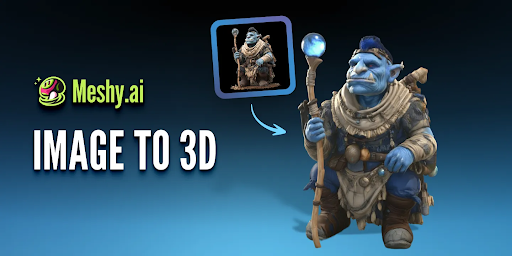
A platform such as Meshy can help the team move from a photograph to a model that is ready for early evaluation without first rebuilding the entire object manually.
Step 4: Review the result on the tablet
The team rotates the model and checks:
- Overall proportions
- Shape of the lampshade
- Position of the base
- Rear surfaces
- Material appearance
- Areas that were hidden in the photograph
The first version may reveal that the rear cable connection has been estimated incorrectly or that the base is too narrow.
Step 5: Refine the direction
The team records changes, adjusts the input, or generates another version.
A stylus can be useful for circling incorrect areas or drawing the intended shape over a screenshot.
Step 6: Export the model
Depending on the project, the model might be exported as GLB, FBX, OBJ, or STL.
A simple concept may be ready for presentation or basic interactive testing. A more demanding project can move to a laptop or workstation for topology, UV, materials, animation, or precise measurement work.
The tablet completes the early creative loop.
It does not need to complete every production task to be useful.
The Camera Is One of the Tablet’s Biggest Advantages
A laptop may offer more computing power, but a tablet is often better at connecting the physical and digital parts of a project.
It can be taken into a shop, classroom, studio, warehouse, exhibition, or client meeting. Users can capture an object, add notes, upload it, review a model, and show the result without moving between several devices.
This is especially useful for:
- Product concept work
- Retail demonstrations
- Educational content
- Museum and cultural projects
- Interior design references
- 3D-printing ideas
- Game prop references
- Small business marketing assets
However, a camera-based workflow has limits.
One photograph does not provide reliable information about every surface. The system may have to estimate the back, underside, depth, or hidden connections. Reflective, transparent, thin, or highly symmetrical objects may also be difficult to interpret accurately.
The generated model should therefore be treated as an informed visual starting point, not a verified digital copy of the physical object.
What a Tablet Can Do Comfortably
Tablet-based 3D work can be divided into three practical levels.
Very practical on a tablet
- Writing prompts
- Uploading photographs and sketches
- Exploring visual directions
- Generating early models
- Rotating and reviewing assets
- Presenting concepts
- Recording revision feedback
- Sharing files
- Approving an early direction
- Exporting models for later work
Possible but less comfortable
- Basic geometry cleanup
- Simple material changes
- Minor sculpting
- Lightweight decimation
- File organization
- Preparing a simple object for 3D printing
- Managing several versions of a small project
These tasks depend heavily on the operating system, application, screen size, and input accessories.
Still better on a laptop or desktop
- Detailed retopology
- Complex UV unwrapping
- Professional character rigging
- Facial animation
- Large game environments
- High-precision CAD
- Heavy rendering
- Advanced simulation
- Multi-application production pipelines
- Detailed troubleshooting of materials and export settings
The boundary is not only about performance.
Desktop interfaces remain better suited to dense professional controls, shortcut-heavy workflows, multiple windows, and precise file management.
What to Look for in a Tablet for 3D Work
Choosing a tablet for AI-assisted 3D should not be based only on processor benchmark scores.
Several practical factors matter.
Screen size
An 11- to 13-inch screen makes it easier to inspect proportions, compare references, and use split-screen applications.
Smaller tablets remain portable but may feel restrictive when the interface, model, and reference image all need to be visible.
Memory
More memory improves browser multitasking, large file handling, and the ability to move between creative applications without frequent reloads.
Storage
3D files, textures, screenshots, references, and exported versions can use storage quickly.
Cloud storage helps, but local capacity is still useful when working with unreliable internet connections.
Stylus support
A stylus is not essential for AI generation, but it is valuable for sketching, selecting areas, writing notes, and marking model corrections.
Keyboard support
A keyboard makes longer prompts, file naming, email communication, and project organization more comfortable.
Browser compatibility
For cloud-based creative work, browser support can matter as much as raw hardware power.
A powerful tablet provides limited value if the required web application does not work properly in its browser.
Network quality
Cloud generation requires files to be uploaded and results to be downloaded. A stable connection affects the speed and reliability of the workflow.
Ports and external displays
USB connectivity, external storage support, and display output can make it easier to move files or use the tablet as part of a larger workstation.
iPad Android or Windows Tablet?
Each platform approaches mobile creation differently.
iPad
The iPad is well suited to sketching, visual review, presentation, and stylus-based creative work.
Its application ecosystem includes many polished design tools, although some desktop production workflows, plug-ins, and file-management habits may still require adaptation.
Android tablets
Android tablets offer a wide range of screen sizes and prices. Higher-end models can provide strong multitasking, stylus support, desktop-style modes, and external display options.
The experience can vary significantly between manufacturers, particularly in software updates, accessory support, and large-screen application optimization.
Windows tablets
Windows tablets can run more traditional desktop software and may fit existing professional pipelines more easily.
They are closer to laptops in capability, although the interface, weight, battery life, and touch experience may be less natural than on a mobile operating system.
The best choice depends on whether the buyer values mobile convenience, stylus input, desktop compatibility, or a balance of all three.
Browser Tools Change How the Work Is Divided
The most important development is not that tablets have become powerful enough to perform every 3D task locally.
It is that the work can now be divided differently.
Creators can use free 3D design software to begin exploring ideas, generating early assets, and reviewing models without building a complete desktop production environment first.
The cloud can handle generation. The tablet can handle input, review, communication, and approval. A workstation can handle the final technical work when necessary.
This approach makes 3D creation more flexible.
A creator might begin with a photograph on a tablet, review the generated model during a train journey, share it with a client, and later open the approved version on a desktop for detailed cleanup.
The devices are not competing to perform every task.
They are each handling the part of the process that suits them best.
Is a Tablet Enough for You?
| User type | Is a tablet enough? | Main reason |
| 3D beginner | Usually enough to start | Suitable for generation, review, and learning basic concepts |
| Product manager | Often enough | Useful for concept testing, presentations, and team feedback |
| Teacher or student | Often enough | Suitable for educational models and small projects |
| Independent developer | Best as a companion device | Good for prototypes, but final assets may need desktop optimization |
| 3D-printing hobbyist | Depends on complexity | Simple ideas are possible, but print preparation still requires checks |
| Professional 3D artist | Not a complete replacement | Detailed editing and large production files still favour desktop tools |
A Tablet Can Be the Starting Point Without Being the Entire Studio
A tablet does not have to replace a workstation completely to become valuable for 3D creation.
Its real strength is reducing the distance between seeing an idea and doing something with it.
Creators can capture references, generate concepts, inspect models, present work, and collect feedback from almost anywhere. For many early-stage tasks, that is already enough to make the tablet an important part of the workflow.
The laptop remains stronger for precision and production depth.
The tablet is becoming stronger at helping projects begin, move forward, and stay connected.
FAQs
Do I need a high-end tablet for AI 3D creation?
Not always. Cloud-based generation reduces local processing requirements, but a better processor, more memory, and a larger display will improve model viewing, browser performance, and multitasking.
Can I create a complete game asset on a tablet?
You can create a concept or early model. A production-ready game asset may still require retopology, optimized textures, collision setup, rigging, and testing in a desktop game engine.
Can a tablet run Blender?
Traditional desktop Blender is not available as a native full-featured application on every tablet platform. Windows tablets may run the desktop version, while other platforms may depend on alternative apps, browser tools, or remote desktop access.
Are AI-generated 3D files stored on the tablet?
That depends on the service. Cloud tools generally require users to upload an input and then download or save the generated model. Creators should review storage, privacy, and file-management options before using sensitive material.

Jim's passion for Apple products ignited in 2007 when Steve Jobs introduced the first iPhone. This was a canon event in his life. Noticing a lack of iPad-focused content that is easy to understand even for “tech-noob”, he decided to create Tabletmonkeys in 2011.
Jim continues to share his expertise and passion for tablets, helping his audience as much as he can with his motto “One Swipe at a Time!”