
Use These Optimization Techniques to Make Your Tablet a Gaming Beast
Tablets are now remarkably powerful gaming devices. The screen sizes of mobile games make them feel like true gaming experiences, and the most recent CPUs are on par with what laptops delivered only a few years ago.
However, most tablets favor general use and battery life over performance right out of the box. This implies that you are most likely unconsciously leaving frames on the table.
It’s time to fix that.
Begin with the Default Configuration
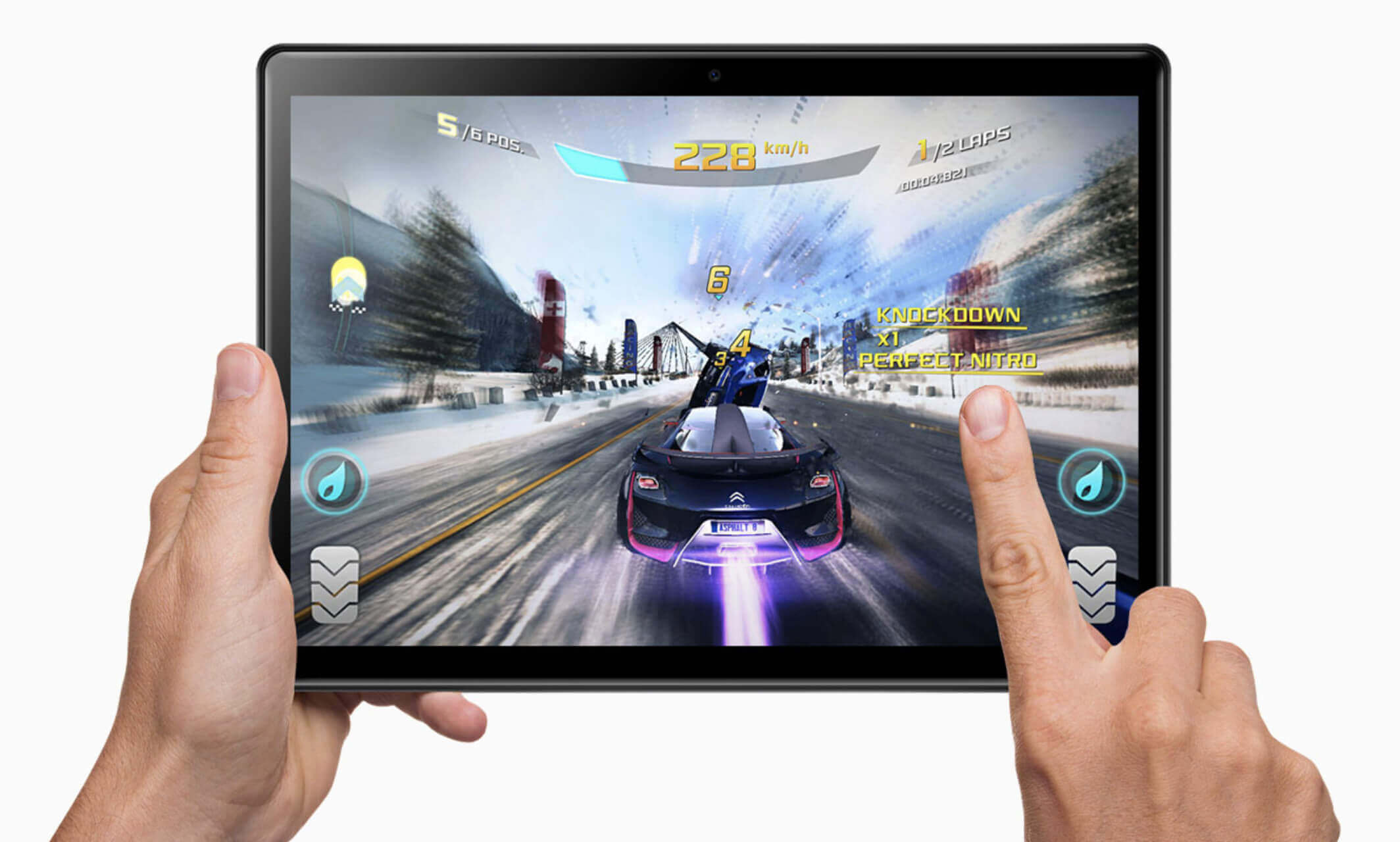
Prior to making more complex adjustments, ensure you have addressed the fundamentals. These small changes can have a big impact right away.
Make sure you are in power mode first. Performance profiles are available on both Android and iPad devices, which limit processing power to prolong battery life.
When playing games, go to high performance or performance mode. Your battery will be depleted more quickly, indeed. That is the price paid for more fluid gaming.
While playing, completely turn off battery-saving features. Even in games that should function flawlessly, these background limiters might cause stuttering. Consistent frame rates cannot be achieved when trying to save every milliwatt on your tablet.
Before starting games, close any background apps. Memory and processing cycles are consumed by the background social media sites, internet tabs, and podcast apps. Games perform best when they have all resources to themselves.
Disable syncing and automatic updates when playing games. Nothing ruins a good run quite like your tablet deciding to download a massive app update mid boss fight.
You May Not Think About Display Settings
The smoothness of games is directly influenced by your screen refresh rate. Make sure the setting is turned on if your tablet supports 90Hz or 120Hz. Games will only play at the maximum speed permitted by the display, and some devices will automatically switch to 60Hz to save battery life.
Inconsistencies may be introduced by adaptive refresh rate features. Although they extend battery life in everyday situations, they can interfere with gaming frame timing. For the most stable experience, lock your refresh rate to a specific value.
Instead of maximizing the screen brightness, turn it down to a comfortable level. Reduced brightness not only saves batteries but also lessens the amount of heat produced by the display panel. Cooler tablets throttle less frequently.
When gaming, think about turning off the automatic brightness changes. Some devices may have microstutters due to the continuous sensor polling and brightness changes.
No One Discusses the Heat Issue
Tablet gaming performance is silently killed by thermal throttling. Your frame rate abruptly drops as your device heats up and the processor slows down to avoid harm. Most people blame the game when, in reality, their tablet is defending itself.
During charging, playing produces a lot more heat. If possible, charge your tablet in advance of gaming sessions rather than during them. When processor heat and battery charge heat combine, many devices rapidly enter the realm of thermal throttling.
Solutions for external cooling are now truly helpful. Surface temperatures can be lowered by several degrees using clip-on fans made for phones and tablets. This directly results in consistent performance throughout extended sessions.
Steer clear of soft surfaces when playing games. Heat is trapped against your device by couches, pillows, and blankets. Hard, flat surfaces allow heat to dissipate more effectively. Some gamers find that basic laptop cooling stands work great for tablets too.
Also important is room temperature. Gaming in a hot environment gives your tablet less thermal headroom before throttling kicks in.
Unnoticed Developer Choices
Developer mode conceals robust optimization tools on Android tablets. To activate it, tap your build number seven times in the settings. Then, carefully go over the additional options.
Power GPU rendering makes the graphics processor handle interface elements that may otherwise be handled by the CPU. This can improve in-game user interface components and menu transitions.
You can limit the number of programs that remain in memory by using background process restrictions. You can free up resources for your active game by setting this to two or three processes at most.
Turn off animations or make them smaller in size. System animations use up processing resources and can cause less powered tablets to perform poorly when playing games.
iPad users should investigate accessibility settings even if they have fewer options. Reducing transparency and motion effects can free up game graphics resources.
Optimization for Particular Games
The visual settings in many popular games are worth investigating. The default settings may not be compatible with your hardware. To guarantee playability on all devices, developers frequently use conservative settings.
With tolerable visual trade-offs, resolution scaling provides the most performance advantages. Frame rates are frequently doubled while maintaining sharpness on tablet-sized screens when the native resolution is reduced to 80%.
Shadow quality on smaller screens always requires a lot of resources for little visual benefit. For noticeable increases in frame rate, set shadows to low or medium.
On tablet screens with a high density, anti-aliasing is less important. Jagged edges are almost invisible since the pixels are already small enough. Minimize or disable this option.
Particle systems and environmental details are controlled by effect quality. Generally speaking, medium settings work noticeably better than high while looking almost the same.
Above and Beyond Performance
The overall experience is just as important as the frame rate. Clean interfaces and seamless interactions are frequently prioritized above showy graphics in phone games that make you smarter. In order to achieve more consistent gameplay, optimization occasionally entails sacrificing visual appeal.
If there are gaming modes on your tablet, activate them. Usually, these prioritize gaming apps automatically, improve touch response, and suppress notifications.
For longer sessions, think about a controller. Although physical inputs minimize screen blockage and frequently increase accuracy, touch controls function perfectly. Most tablets have built-in support for Bluetooth controllers.
There is more gaming potential on your tablet than it initially seems. You will benefit from a few minutes of optimization in every game you play.

Jim’s passion for Apple products ignited in 2007 when Steve Jobs introduced the first iPhone. This was a canon event in his life. Noticing a lack of iPad-focused content that is easy to understand even for “tech-noob”, he decided to create Tabletmonkeys in 2011.
Jim continues to share his expertise and passion for tablets, helping his audience as much as he can with his motto “One Swipe at a Time!”