
Performance Tips for How to Maximize Use of Your Android or iPad
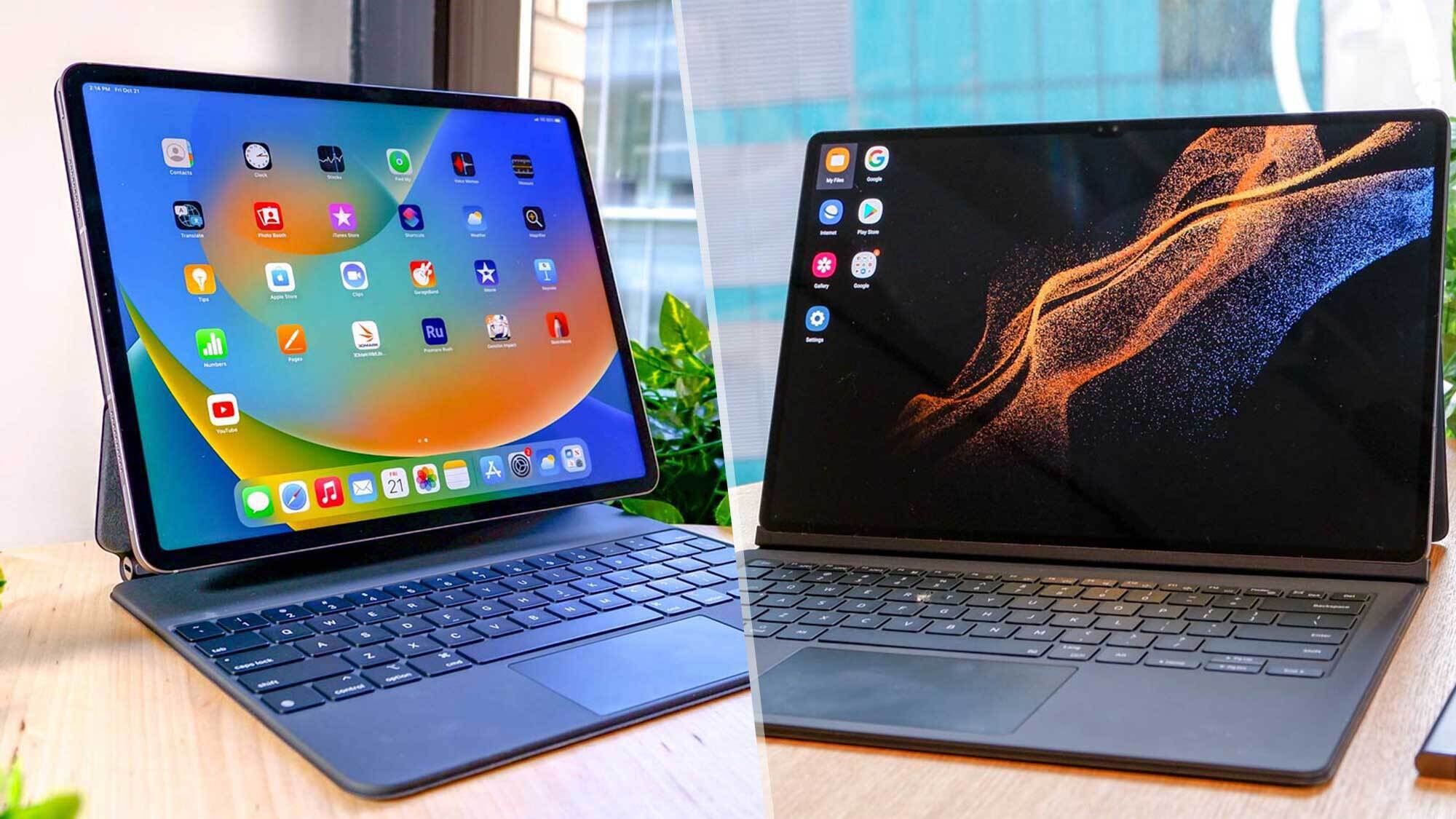
Tablets have come a long way from their initial days as large smartphones. Nowadays, a good tablet can substitute a laptop for everyone, whether you are watching, working, drawing, or gaming.
With Apple’s M4 and Qualcomm’s Snapdragon X series processors, tablets now provide the kind of performance previously dominated by high-end laptops.
But performance can suffer over time unless you look after your storage and software. Two habits and a couple of adjustments can be the difference between how snappy and fast your tablet is. Here are a few easy ways of keeping your Android or iPad running like new this year.
Keep Your OS and Apps Updated
Periodic updates can seem like a chore, but they are the secret to tablet performance. Each subsequent edition of iPadOS or Android has minor but substantive improvements that get the device to work faster and be more efficient.
For example, later versions generally allocate memory better, open applications quicker, and endure longer on battery while multitasking.
If you have the habit of dismissing update notifications, you can enable automatic updates. It saves you the hassle of remembering and has your tablet ready with new security updates.
You also provide a kick by rebooting your tablet from time to time as it clears out temporary files and resets background processes that could have slowed the system.
Lastly, it is beneficial to do a quick storage check periodically. Unused applications that you no longer require can occupy space and resources, slowing down your device. Removing them not only creates free space but will also enable the operating system to function more smoothly.
Control Background Activity
Most applications operate continuously, even when you’re not actively interacting with them. They update, reload feeds, and send notifications, which consumes both power and processing resources.
One of the simplest ways to maintain responsiveness of your tablet throughout the day is to limit background activity.
On Android tablets, you can access the Battery settings and choose which applications you wish to keep running in the background.
On iPads, the option is under Settings, then General, and then Background App Refresh. Turn this off on apps you don’t use regularly, such as games or rarely used social media sites.
You should see longer battery life and quicker response times, particularly when opening apps or waking up your tablet from sleep. It also causes the tablet to run cooler and reduces unneeded data usage.
Optimize Storage and Memory
Storage capacity largely relies on tablet speed. When your device is nearly full, it has very little room to accommodate temporary files, making your day-to-day processes like downloading or opening large files slower. Keep at least ten percent of the entire storage available to allow the system to run smoothly.
Both iPads and Android tablets now have storage analysis integrated into them, telling you what apps or data are taking up space. Use them to find large media files, downloads, or caches you can delete safely.
If you upload a lot of videos and pictures, utilize the cloud storage features such as Google Drive, iCloud, or OneDrive.
These enable you to save your media without filling up local space. Managing space this way ensures that your tablet remains responsive and snappy even if you use it for more resource-hungry apps.
Adjust Display and Performance Settings
Your tablet display can dictate if it glides smoothly. Screens these days are usually configured to 90 or 120 hertz, which makes for a stunning, smooth experience but one that consumes more power.
If you use your tablet mainly for reading or writing, reducing the refresh rate can increase the battery life and reduce heat.
You can also reduce motion effects and animations in accessibility settings. This enhances transitions and gives a snappier experience, especially on slightly older tablets.
If you’re using gaming or creative apps, consider enabling a high-performance mode when charging. This prevents the processor from slowing down when used for long periods and keeps frame rates consistent.
Choose a Browser that is Good
For many, the browser is their most frequently used app on the tablet. Browser speed and battery life can be greatly impacted by the browser chosen.
Safari and Chrome remain good options, but browsers such as Microsoft Edge and Brave are optimized for mobile and privacy. They use fewer system resources and are able to block intrusive scripts or ads, which allows pages to load faster.
Tablets today accommodate advanced, browser-based programs previously requiring full computers. They accommodate complex sites, cloud-based editors, and streaming apps with ease.
Even more demanding experiences such as online entertainment portals or browser games run smoothly.
For example, performance tablets are capable of natively executing such interactive web-based gaming experiences like casino websites in the browser without any lagging. It is a traditional testament to how far web as well as hardware optimization has come.
Simplify Your Home Screen
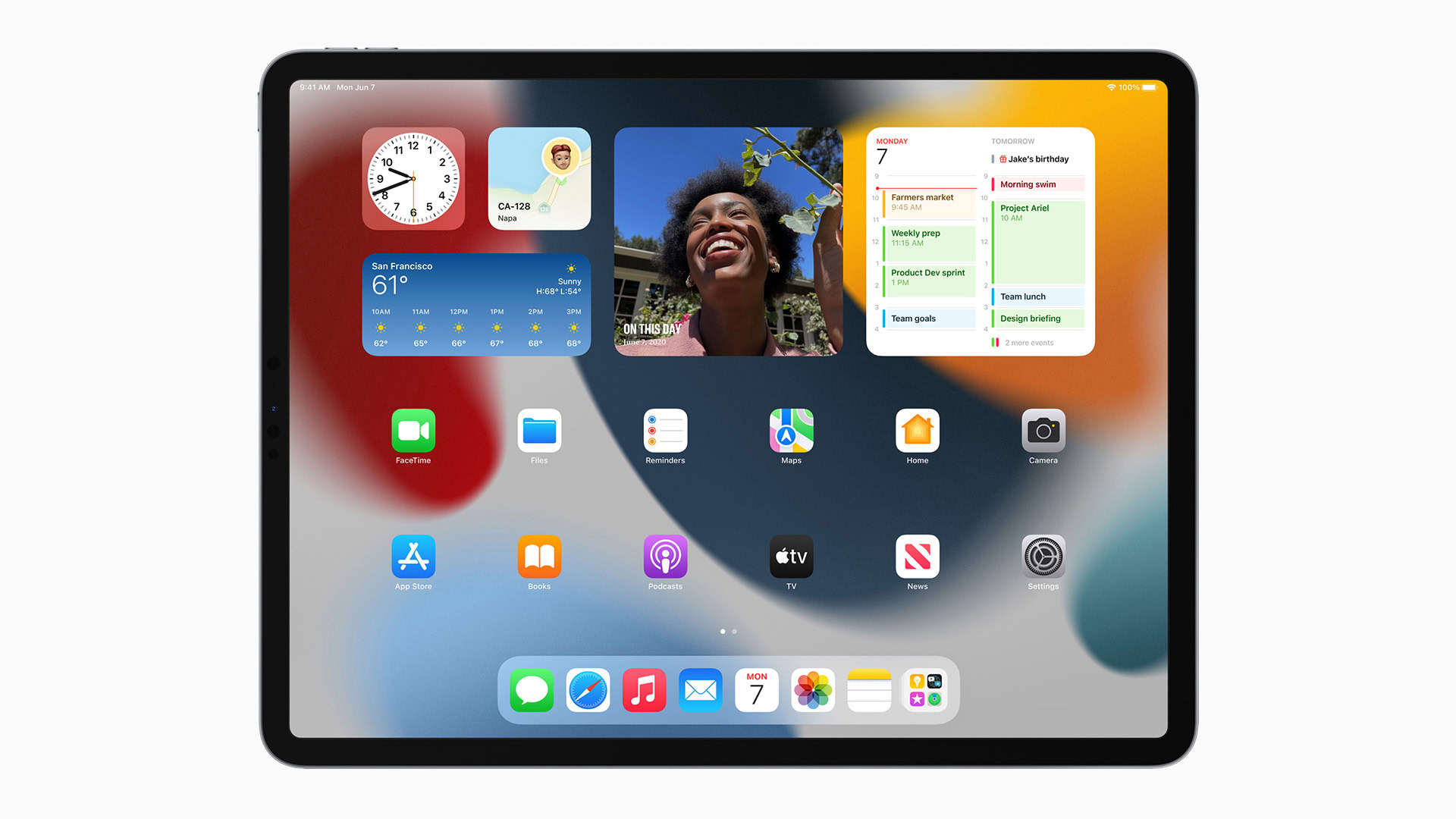
Live wallpapers and live widgets are nice, but they put a bit of a strain on the processor. Soon, having too many live widgets will delay navigation and drain battery life. If you enjoy your tablet snapping when you move between screens, try simplifying your layout.
Keep a static wallpaper and only have those widgets that actually offer value, for example, a calendar or weather widget. The less cluttered your home screen is, the smoother your tablet will be.
Restart Frequently and Clean Cache
A mere reboot can perform miracles to tablet speed. Every time you reboot, the system wipes out temporary data and reclaims memory allocation. This eliminates minor errors that have crept up in extended usage.
Clearing the cache of the app and browser periodically also frees up storage and makes frequently used apps launch quickly. Most tablets offer this as a feature option and takes a minute to accomplish.
Use Accessories Wisely
Accessories can greatly enhance the functionality of a tablet, but they can also have an impact on battery life and performance.
Styluses, Bluetooth keyboards, and wireless headsets all draw a tiny amount of power and keep the connection modules of the tablet running. Disable them when not in use to conserve energy.
If you frequently work or play with the charger inserted, use a certified fast charger that has the right power delivery for your device. A stable power connection avoids interference in performance, especially during intense operations like drawing or gaming.
Conclusion
With the right habits and settings, your tablet can stay fast, effective, and responsive going forward. Keeping your software up to date, managing background activity, and monitoring storage space are simple but powerful ways to ensure smooth performance.
Tablets have truly become one-stop devices that can handle productivity, creativity, and entertainment with utter simplicity.
Whether you work on a presentation, watch a movie stream, or play around with high-end web applications, a few minor adjustments will get your tablet to perform at its best for years to come.

Jim’s passion for Apple products ignited in 2007 when Steve Jobs introduced the first iPhone. This was a canon event in his life. Noticing a lack of iPad-focused content that is easy to understand even for “tech-noob”, he decided to create Tabletmonkeys in 2011.
Jim continues to share his expertise and passion for tablets, helping his audience as much as he can with his motto “One Swipe at a Time!”