
The 30-Second Check That Would Save Your Print
A few years ago, I lost a whole Saturday to a desk bracket I wanted. The print lasted six hours. Around hour five, I wandered back to the printer and found the nozzle lying down like plastic spaghetti.
The hitch is that the slicer didn’t complain, and the file looked perfectly fine. I was annoyed at my carelessness, but the real culprit was the format itself.
I’ve made one useful habit since then: check every STL before running it to slice. It takes about thirty seconds, but might prevent costly mistakes down the road.
Why STL Files Hide Their Flaws?
An STL holds a pile of triangles and nothing else. It has no units, no colors, and no way to say ‘hey, there’s a hole here.’ A single open edge or flipped facet stays hidden until a slicer chokes on it, or worse, accepts it and produces something strange.
Scale is the other classic trap. STL doesn’t carry individual units, so a model designed in inches can show up 25 times too small once it’s read as millimeters. I’ve done that one too. When I open a file now, I’m asking three things:
- Is it watertight? The surface should be fully closed.
- Is the scale right? The dimensions should match what I intended.
- Did the detail survive? Thin walls and small features sometimes vanish on export.
A Browser Tab Instead of Another Install
I used to open files in heavy desktop software just to rotate them. These days, Meshy’s free online STL viewer is my choice.
Meshy is one of the leading AI 3D model generators, and its toolkit runs entirely in the browser, so there’s nothing to install and no account to create. You simply drop the file in and orbit it within seconds.
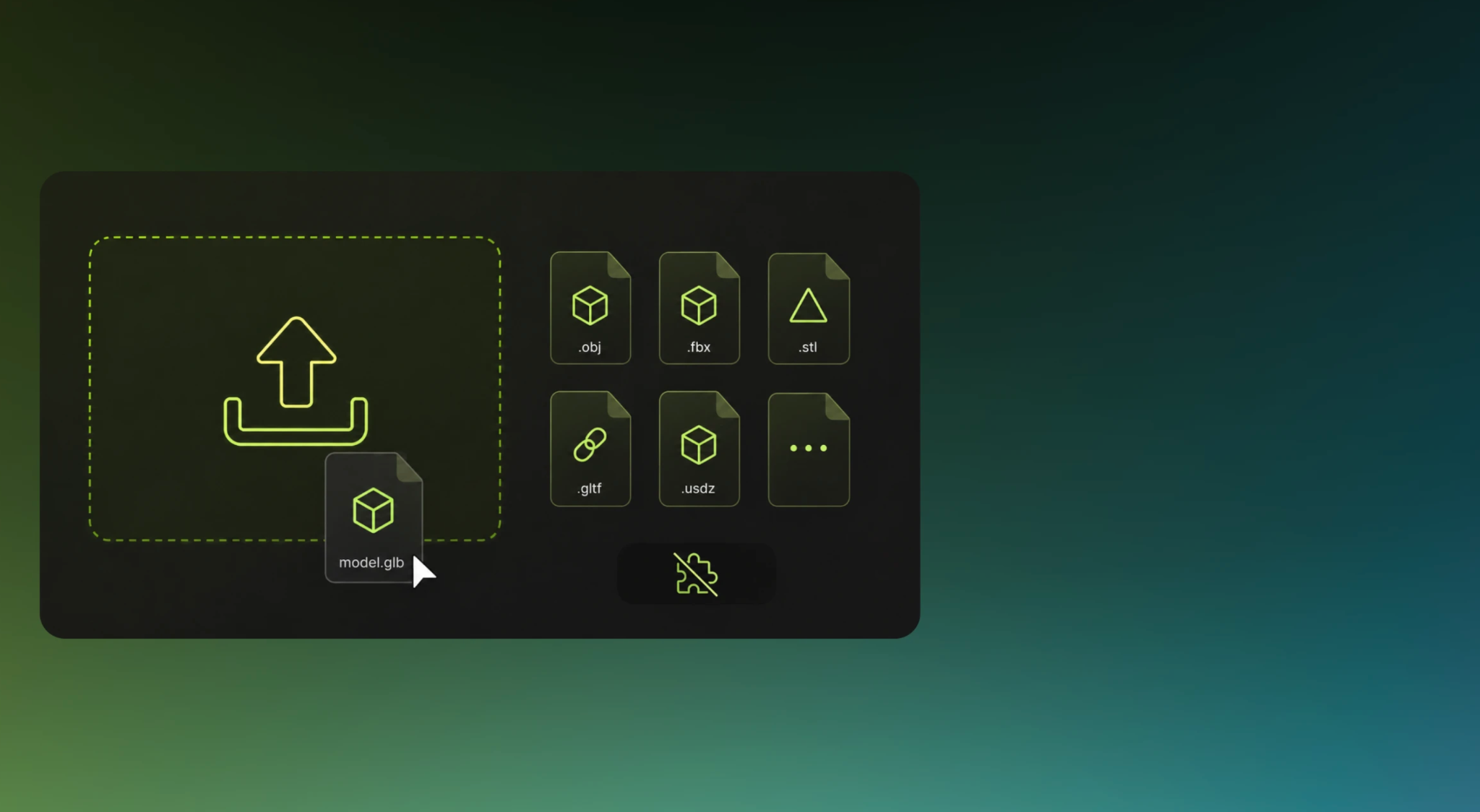
Two details made me trust it. The viewer takes files up to 200 MB, which covers most of what I throw at it. It also parses everything locally in your browser, so the model is never uploaded to a server. If you’re looking at a client’s prototype or anything under NDA, that’s a real relief.
The platform is honest about its limits, too. It reads one file at a time and shows STL geometry in a plain neutral material, because the format never stored color in the first place. If the mesh turns out to be broken, Meshy has a separate STL Repair tool for that.
Inspect an STL in Four Steps
- Upload. Put your STL file into the viewer or click to browse.
- Orbit. Drag to rotate, scroll to zoom, and right-click to pan. I always look underneath and inside, because that’s where the gaps and paper-thin walls hide.
- Verify scale. The viewer assumes millimeters, so compare the apparent size with your intended dimensions.
- Decide. If the mesh has holes, send it to STL Repair. If you need materials or a lighter file, convert it to OBJ or GLB.
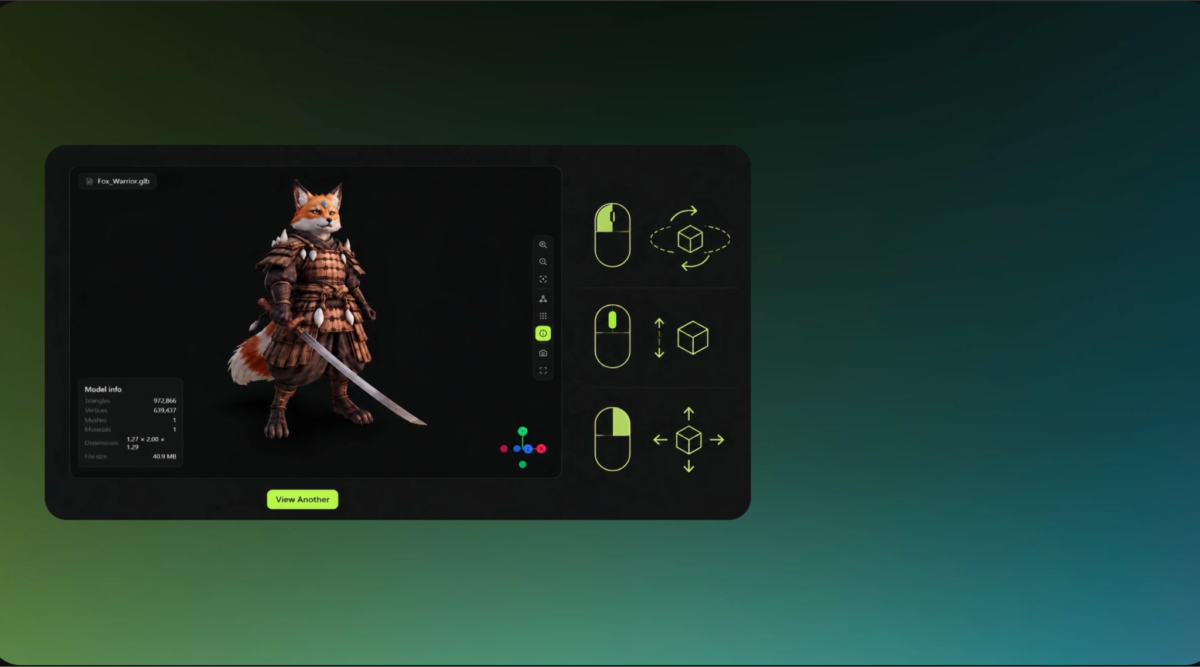
Mesh size can slow things down. The viewer disables its edge overlay above one million triangles, and multi-million-triangle files load slowly. A decimated copy is the practical workaround.
Why Viewing Feels Better Next to Creating?
What I like most is that the viewer sits inside a bigger toolbox. Meshy can deliver models in two ways:
- Text to 3D turns a written description into a model.
- Image to 3D does the same from a picture. It also accepts multiple images, so you can show several angles of one object and give the AI more to work with for improved accuracy.
From there, you can add AI texturing, auto-rig a character for animation, or generate reference art with the AI image generator.
Finished models are exported as STL, OBJ, GLB, or FBX. This means the same asset can head to a slicer, a game engine, or a design workflow. A free tier lets you test the workflow before paying, and developers can reach the same capabilities through Meshy’s API.
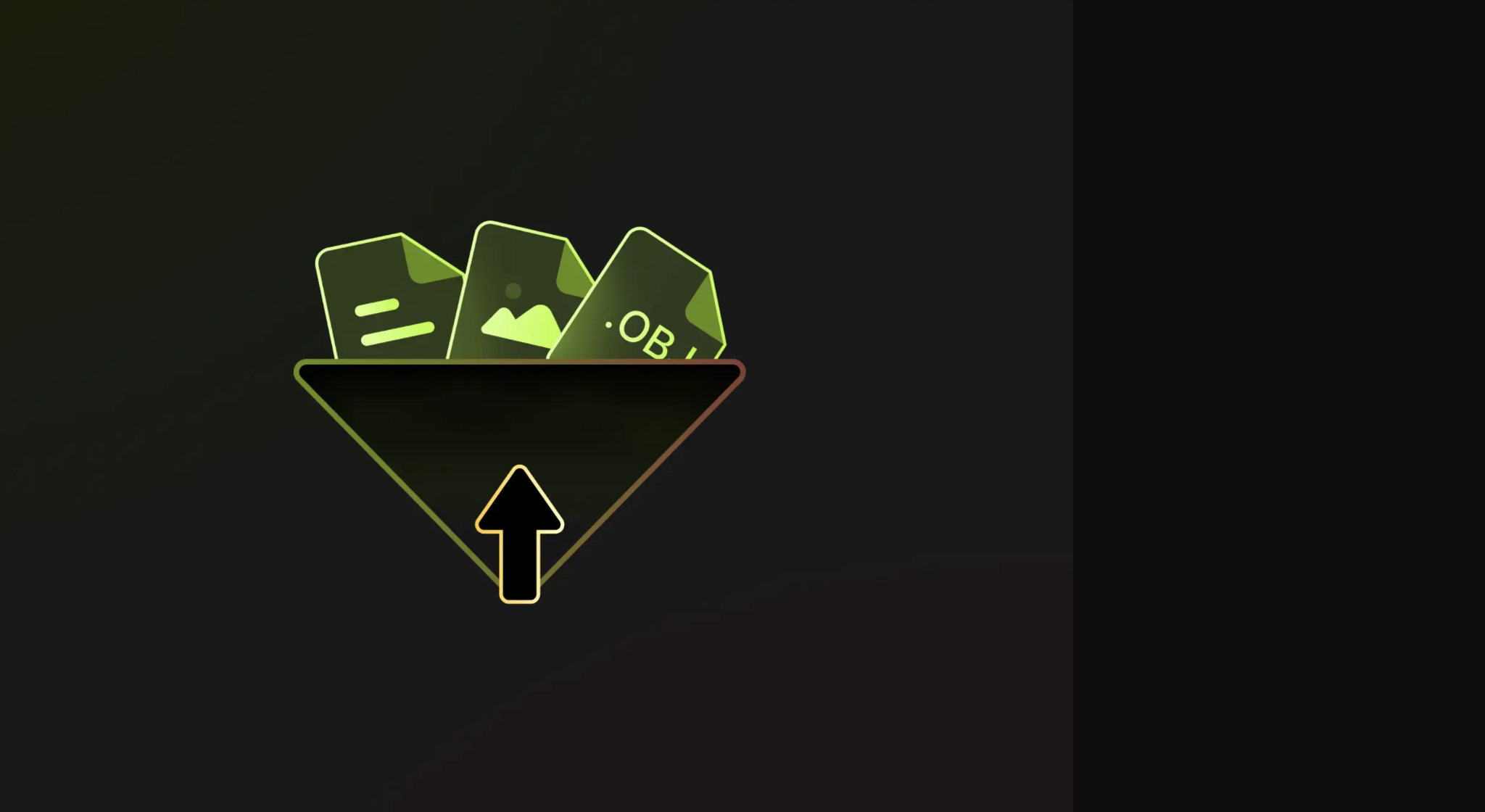
The free toolkit completes the loop with a Converter, the Online Viewer, and STL Repair. You can generate, inspect, repair, convert, and export without leaving the browser.
Three Situations Where This Habit Pays Off
These are the most common scenarios people have run into during 3D modeling.
- The bracket you described instead of drew. Say you prompt Text to 3D for a wall-mount bracket, but open the exported STL before printing. From underneath, the lip you considered sturdy is only a few layers thick. You regenerate and get the spool to survive.
- The miniature built from photos. A tabletop gamer feeds three angles of a hand-painted figure into multi-image Image to 3D. Before it goes to a resin printer, they inspect the base for gaps and the fingers for fused geometry. The check takes less time than rinsing a failed print.
- The client file you’d rather not open locally. A freelancer receives an STL and doesn’t want proprietary geometry sitting in heavy desktop software. Because the viewer processes the file in the browser, it stays on their machine, and one orbit confirms whether it’s usable.
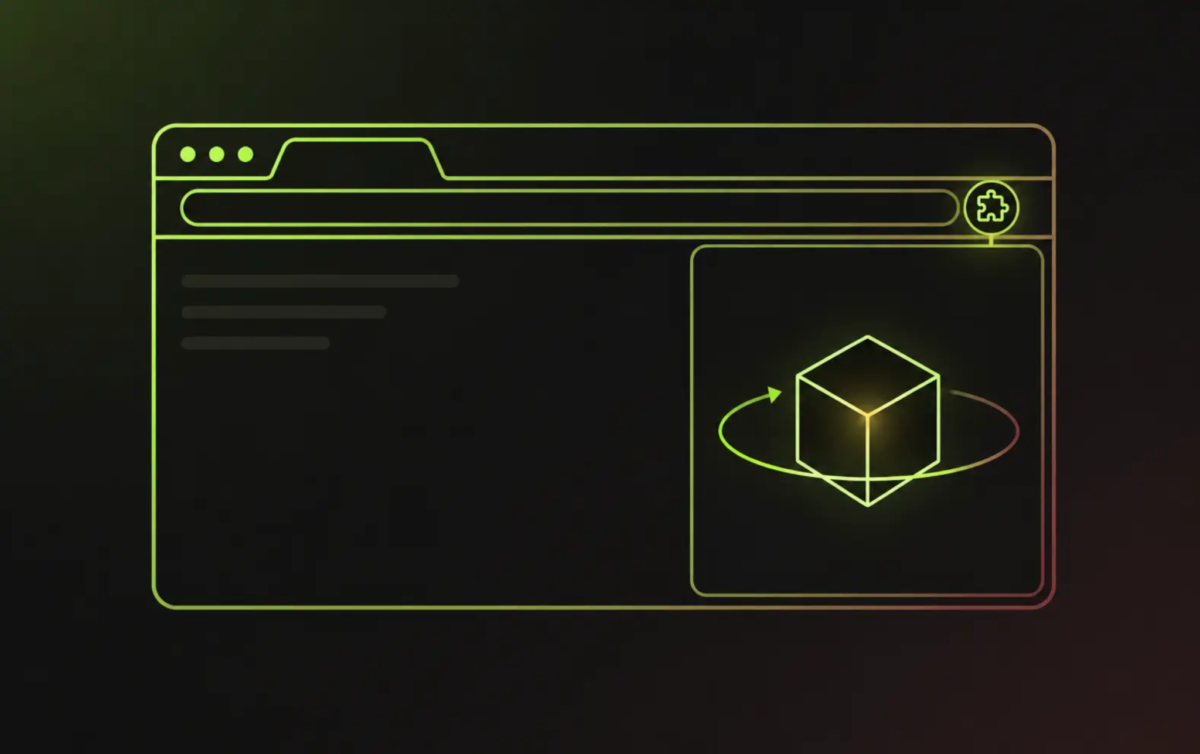
If you check files all day, Meshy also offers a free Chrome extension. You drop a GLB, FBX, OBJ, or STL file into its side panel and spin it around right there.
STL Viewer FAQs
Do I need an account to view an STL?
No. Viewing is free and works without signing in.
Will it show colors or textures?
Not for STL, because the format never stores them. If you need color, convert to GLB and apply textures with AI texturing.
Why does my model look blank?
The usual causes are a corrupted file, a file with no triangles, or inverted normals that make faces vanish from the camera’s viewpoint. Test the file in another application and try a simplified copy if it is very large.
Does it support a mobile version?
Yes. It runs in the browser on iOS, Android, and tablets, though very heavy meshes may load slowly.
The Takeaway
An STL is a promise that the geometry is ready to manufacture, and the file has no way of telling you whether that promise is true. A quick look in a browser can.
Pair that habit with a generator that produces printable assets from text or photos, and the path from idea to finished print gets shorter and more predictable. Next time you’re about to hit ‘slice,’ spend the thirty seconds. Your Saturday will thank you.

Jim's passion for Apple products ignited in 2007 when Steve Jobs introduced the first iPhone. This was a canon event in his life. Noticing a lack of iPad-focused content that is easy to understand even for “tech-noob”, he decided to create Tabletmonkeys in 2011.
Jim continues to share his expertise and passion for tablets, helping his audience as much as he can with his motto “One Swipe at a Time!”