Using a Tablet as a Second Screen for WoW Mythic+ Runs
World of Warcraft is a PC and Mac game, so you will not be raiding on your tablet. That does not make a tablet useless for WoW players, though. Set up beside your main monitor, it becomes an ideal companion screen: always on, always visible and much less distracting than switching windows in the middle of a dungeon run.
This guide covers why a second screen helps in Mythic+, what to put on it, and how to set up a tablet so it works without getting in your way.

Why a second screen helps in Mythic+
Mythic+ dungeons are timed and unforgiving. Leaving the game to look something up can cost you precious seconds, and flipping between windows is a good way to miss a mechanic. A second screen solves this by keeping reference material in view while the game stays front and center.
A tablet is a particularly good fit because it is:
- Portable and quick to set up, so you can prop it up anywhere on your desk.
- Touch-friendly, which makes scrolling a guide or tier list effortless.
- Independent of your gaming PC, so it does not use graphics power or clutter your main desktop.
What to put on the tablet?
Think of the tablet as a dashboard. These are the things worth keeping open:
- A current tier list to check how your spec compares this season.
- Your spec guide for talents, ability priority and quick reminders.
- Dungeon notes with routes, dangerous mechanics and which enemies to prioritize.
- Group chat or voice chat controls, such as Discord, so you can talk without leaving the game.
- A simple notes or timer app for tracking cooldowns or writing down lessons after a run.
Reading a tier list on a small screen
Tier lists are the single most useful thing to keep handy, but they are also easy to misread. A Mythic+ DPS list such as https://wow.gg/meta/mythic-plus/dps shows how specs perform in the current season and lets you filter by dungeon, key level range and week. That makes it a good fit for a tablet: you can switch filters with a tap while your group is forming.
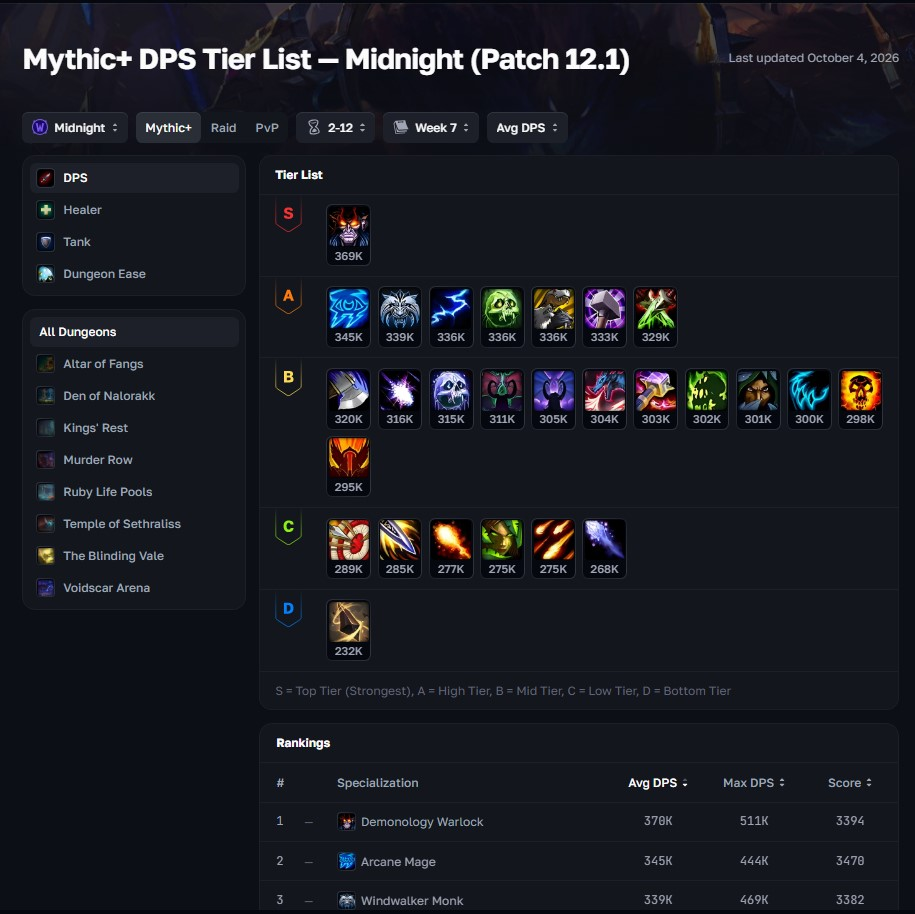
A few habits make the data more useful:
- Use the average, not just the peak. Average results show how a spec performs for most players, while the maximum shows its ceiling under ideal conditions.
- Match the key range to your own. What works at the highest keys may not be the best choice at mid-level keys.
- Treat tiers as distance from the top. A tier tells you how close a spec is to the best result, not whether it is mandatory or unplayable. The gaps between specs can be small, and player skill matters a great deal.
- Check the date. Rankings change from week to week, so look at the freshest numbers before making a decision.
Setting up your tablet
A few small changes make the experience much better:
- Use a stand. A tablet lying flat is awkward to read. A simple adjustable stand or a folio case that props the screen at an angle makes a big difference.
- Stop it from sleeping. Raise the auto-lock or screen timeout so the display does not turn off in the middle of a run.
- Switch on dark mode and lower the brightness. A bright screen beside a dark game is distracting, and dark mode is easier on the eyes in long sessions.
- Add shortcuts to your home screen. Save your most-used pages so you can open a tier list or guide in one tap.
- Keep it charged. Leave the tablet plugged in or on a charger so a long evening of runs does not end with a dead screen.
- Use split-screen if you need it. Most modern tablets can show two apps side by side, which is handy for a guide and a chat window at the same time.
Choosing a tablet for the job
You do not need a flagship device. A mid-range tablet is plenty, because you are only browsing pages and running a few light apps.
| Factor | Why it matters |
| Screen size | Around 10 inches is comfortable for tables and guides without taking over your desk |
| Battery life | Long sessions are easier when you do not worry about charging |
| Multitasking | Split-screen helps if you want a guide and chat side by side |
| Case or stand | A stable angle matters more than extra processing power |
| Wi-Fi quality | Pages load quickly and your notes stay in sync |
Common mistakes to avoid
- Cluttering the screen. Keep only what you need during a run. Too many tabs make it harder, not easier, to find information.
- Reading while you play. Check the tablet between pulls or while waiting for the group, not during a dangerous mechanic.
- Trusting old data. Always confirm that a list or guide is up to date before changing your build.
- Over-investing in hardware. A basic tablet and a decent stand beat an expensive device you never set up properly.
A tablet will not run World of Warcraft, but it can make your time in the game smoother and more informed. Give it a stand, keep it awake, load it with a current tier list and your spec guide, and you have a cheap, flexible second screen that fits any desk. Start simple, adjust to your own routine and let the data you read help you make better decisions in your next key.

Jim's passion for Apple products ignited in 2007 when Steve Jobs introduced the first iPhone. This was a canon event in his life. Noticing a lack of iPad-focused content that is easy to understand even for “tech-noob”, he decided to create Tabletmonkeys in 2011.
Jim continues to share his expertise and passion for tablets, helping his audience as much as he can with his motto “One Swipe at a Time!”